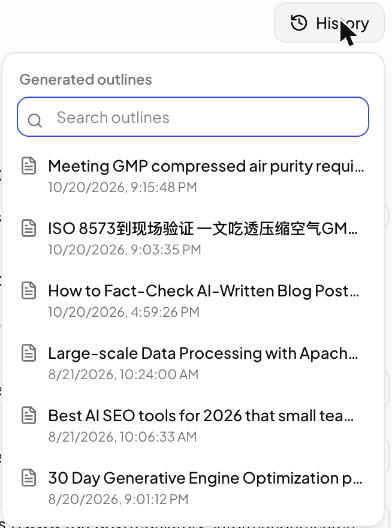
Generate an outline with Outline Generator
Research a topic, pick a title and settings, edit the outline, then write the article from it.
Outline Generator researches your topic, suggests titles, and builds an H1 / H2 / H3 outline you can edit before any article is written. Use it when you want to agree on the structure first.
Open it from Home (Outline Generator under the writing box), or from Generate Outline on a topic in Topic Finder.
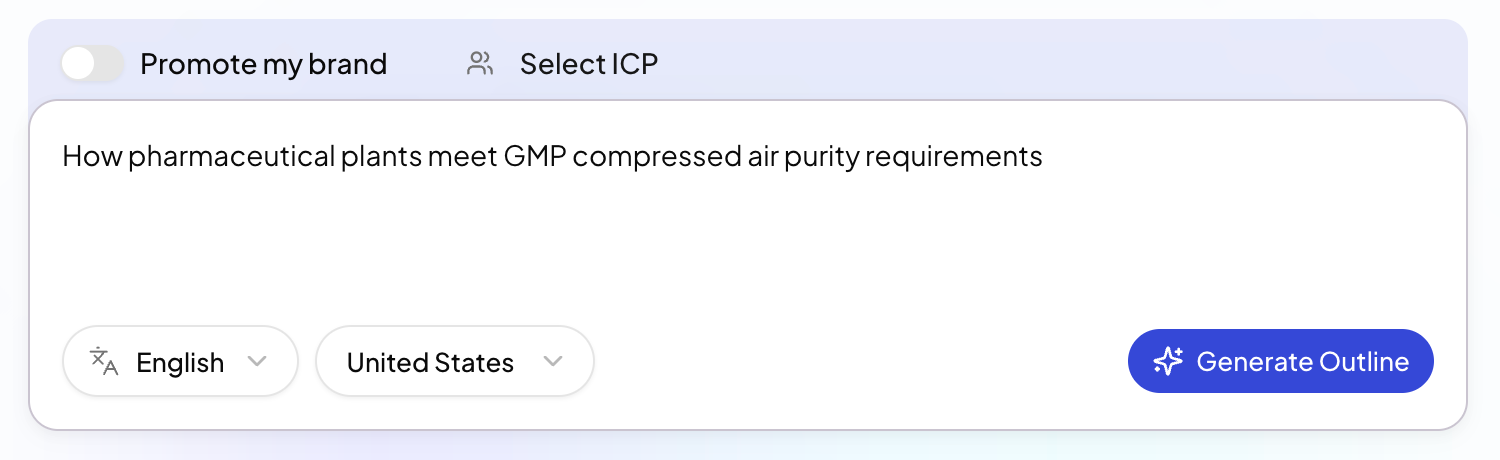
1. Enter your topic
Type your topic or idea. Then set:
- Language: the language of the outline and article
- Region: the market you write for
- Promote my brand: on if the outline should make room for your brand; off for a neutral piece
- Select ICP: the buyer to write for (optional)
Click Generate Outline.
2. Let it research
The SEO Writing Expert confirms the topic and main keyword, researches authoritative sources, and searches for strong articles on the same topic. Each step shows as a card you can open.
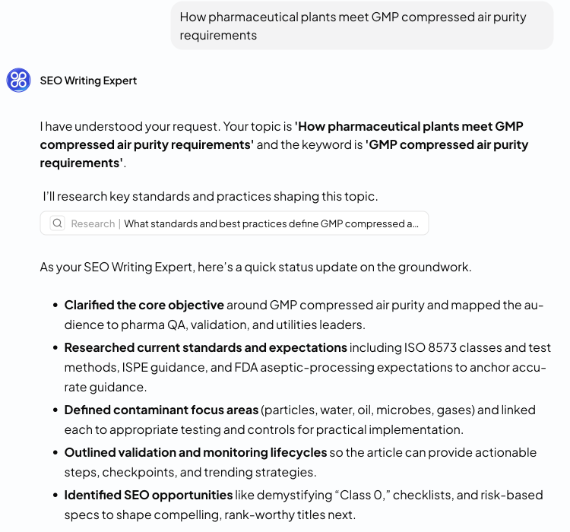
Stay on the page while it works. If you leave, generation stops and the outline is not saved.
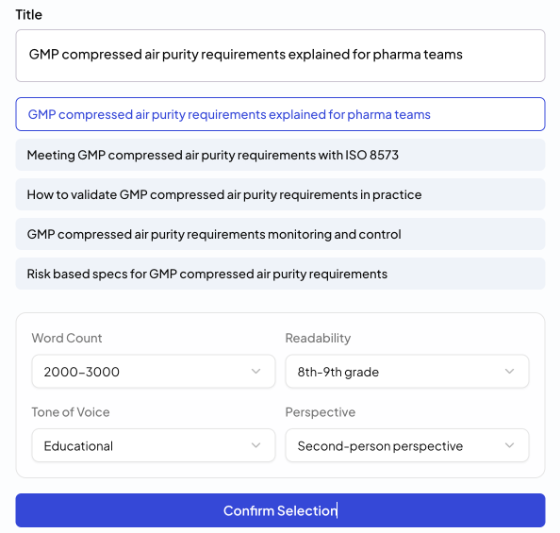
3. Pick a title and settings
You get several suggested titles. Pick one, or type your own in Title. Then check the article settings:
- Word Count
- Readability
- Tone of Voice
- Perspective
Click Confirm Selection.
4. Review and edit the outline
When Your outline is ready! appears, the outline opens in Outline Preview on the right. Click the outline card in the chat to open it again later.
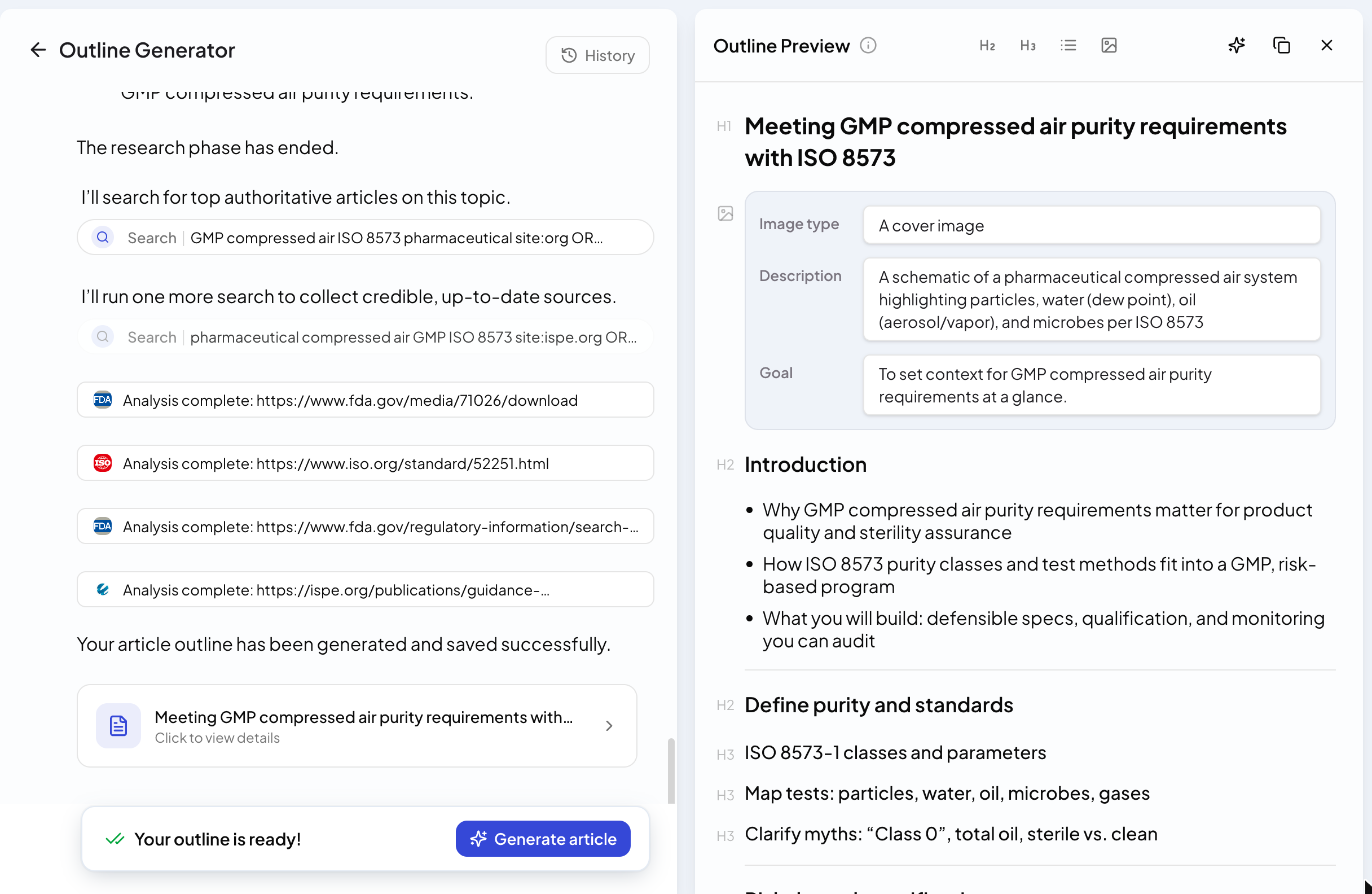
The preview is an editor:
- Use the toolbar to add an H2, an H3, a bullet list, or an image block.
- Each image block has an image type, a description and a goal. Edit them to change the picture the article will get.
- Markdown shortcuts work too:
###starts an H3,---adds a divider. - The copy button copies the outline as Markdown.
Your edits are saved automatically.
5. Write the article
Click Generate article (in the bar at the bottom, or the ✨ button in the preview). The outline is placed in the writing box on Home. Check your settings there and click Start Writing. See Write a blog post.
Find past outlines
Click History at the top right to see the outlines you generated, and search them by title.