Search and organize your Knowledge Base
Find items with AI Semantic Search, filter by type and tag, and manage each item.
As your Knowledge Base grows, search, filters and tags help you find what you added and keep it tidy.
Search by meaning
The search box at the top is an AI Semantic Search. Describe what you need in plain words, for example an image of a coffee cup or warranty terms for the X200, and it finds items that match the meaning, not just the exact words.
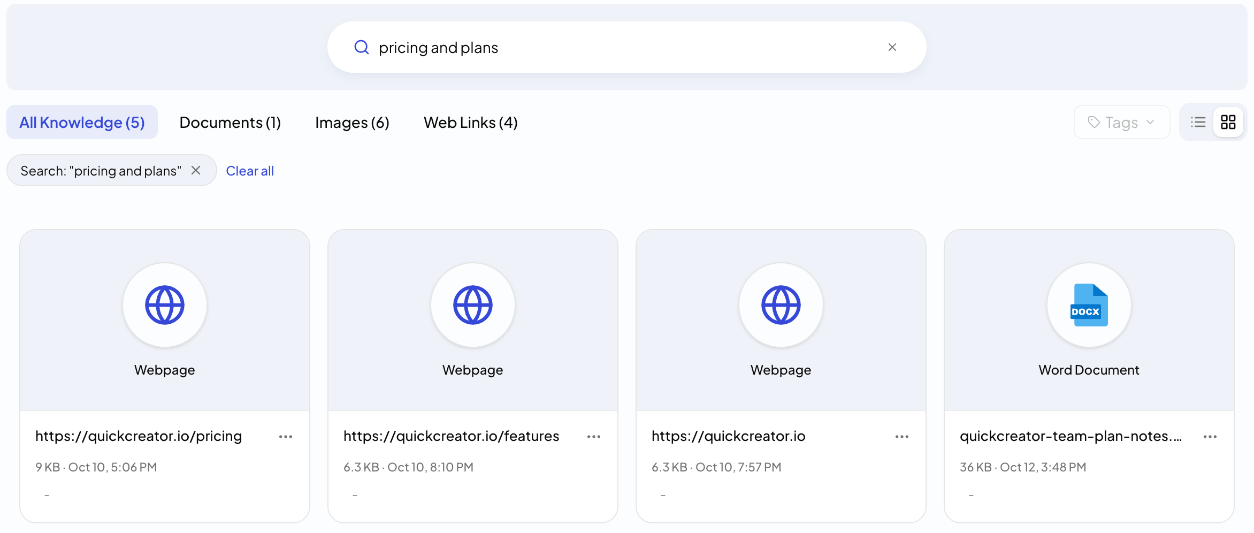
Items you just added can take a couple of minutes to show up in search results. Your search and any selected tags show above the list. Click the × on one to remove it, or Clear all to go back to the full list.
Filter by type
Use the tabs to narrow the list:
- All Knowledge: everything
- Documents: uploaded files
- Images: uploaded images and images saved from web pages
- Web Links: pages added by URL
You can switch between list and grid view.
Tag your items
Tags are your own labels, such as pricing, case study or product X200.
- To tag one item, hover over it and click Add Tag, or choose Edit Tags from its menu. Type a tag and press Enter.
- To filter by tag, open Tags and pick one or more.
Deleting a tag removes it from every item that has it. The items themselves stay.
Manage an item
Click an item to preview it. Its ⋯ menu has:
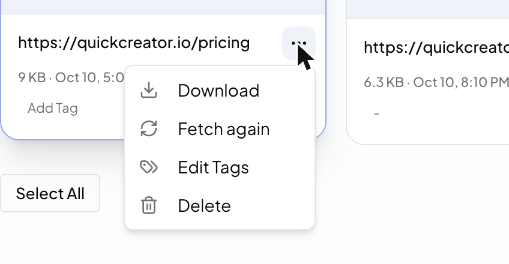
- Download: get the original file
- Fetch again: re-read a web page, for example after the page has changed. If the new fetch fails, the earlier content stays in use.
- Edit Tags
- Delete: removes the item from your Knowledge Base. This can't be undone.
You can't edit tags or delete an item while it is still being fetched or indexed.
Related articles
- Set up your Brand ProfileLet QuickCreator read your website and build the profile every article is written from, then check and edit it.
- Create an Ideal Customer ProfileDescribe a buyer to the market research assistant, then refine their goals, pain points, objections and preferences.
- Add documents and web pages to your Knowledge BaseUpload files or add website links so articles get your product facts right.
- Fix Knowledge Base items that can't be readWhat each failure message means and how to get the content in.