Publish to your own system with an HTTP request
Send finished articles to any CMS or app through an HTTPS endpoint you control.
Publishing 1 min readUpdated 2026-10-20
Before you start
- An HTTPS endpoint you control that accepts POST or PUT requests
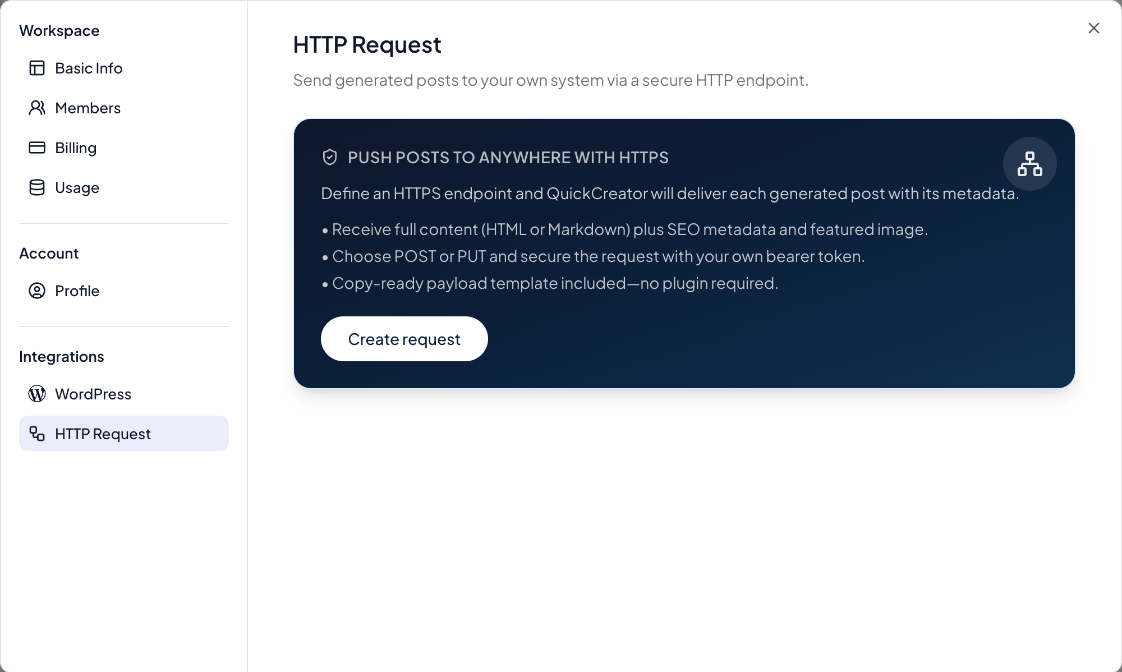
If your site doesn't run on WordPress or a QuickCreator blog, QuickCreator can send each article to an HTTPS endpoint you build. No plugin is needed.
Set it up
- Click your name at the bottom of the sidebar, then Settings → HTTP Request, and click Create request.
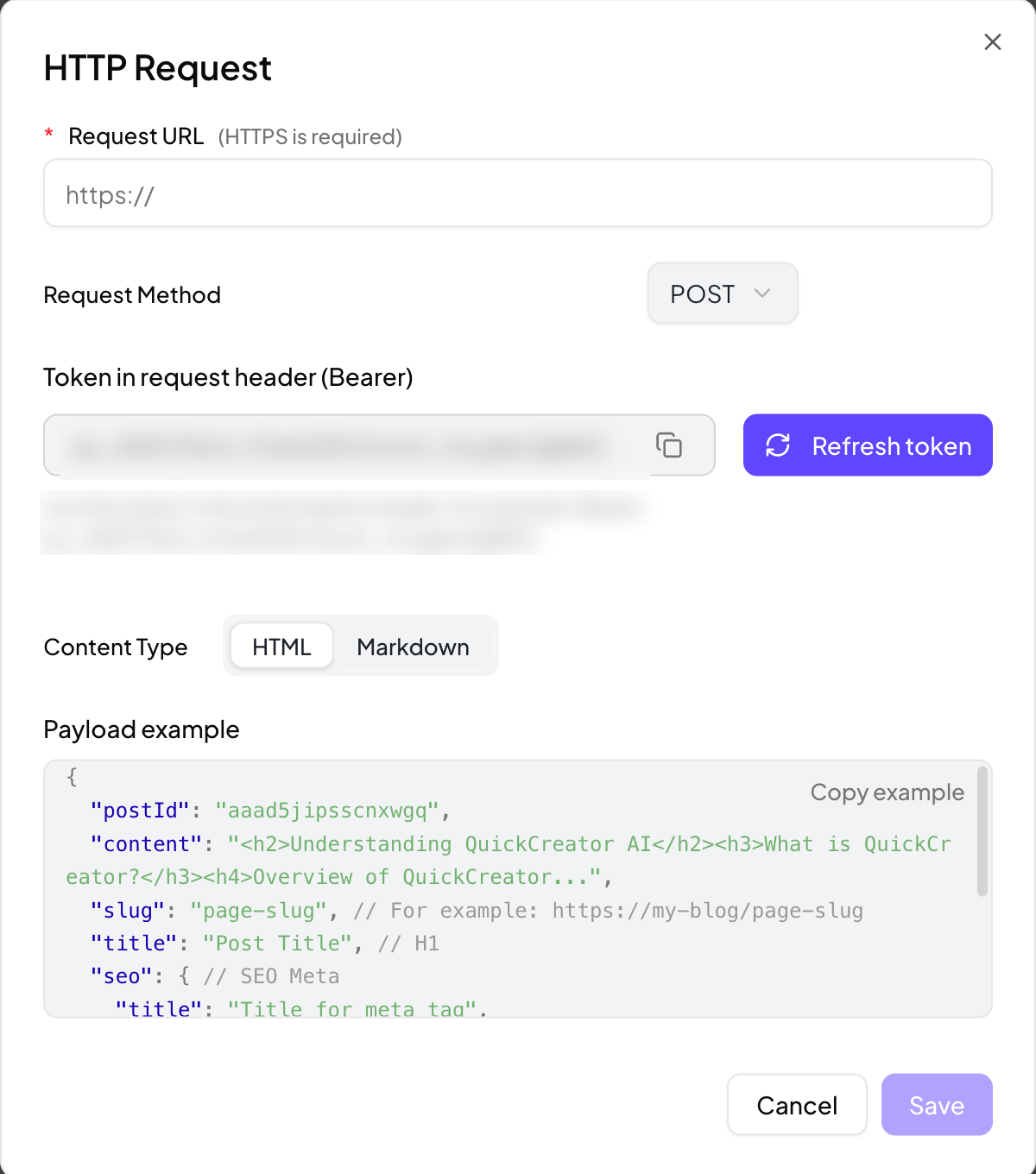
- Fill in:
- Request URL: your endpoint. It must start with
https://. - Request Method: POST or PUT.
- Token in request header (Bearer): QuickCreator generates a token. Your endpoint should check the
Authorization: Bearer <token>header. Click Refresh token to issue a new one. - Content Type: HTML or Markdown.
- Request URL: your endpoint. It must start with
- Use Copy example to see the payload your endpoint will receive, then click Save.
What your endpoint receives
{
  "postId": "…",
  "content": "<h2>…</h2>…",
  "slug": "page-slug",
  "title": "Post Title",
  "seo": {
    "title": "Title for meta tag",
    "description": "Description for meta tag",
    "keywords": "Keywords for meta tag",
    "feature_image": "https://…/image.png"
  }
}
content is HTML or Markdown, depending on your setting.
Publish
In the editor, open Publish Settings, click Change next to Publish to, choose your HTTP request under Third-Party Integrations, and click Publish.
Keep the token secret. If it leaks, click Refresh token and update your endpoint.
Related articles
- Create a hosted blog siteLaunch a blog that QuickCreator hosts, pick a theme, and manage its settings.
- Connect your own domainPut your hosted blog on a subdomain like blog.yourcompany.com, or in a folder like yourcompany.com/blog.
- Blog SEO settings and categoriesSet your blog's homepage title, description, structured data and canonical URL, and group posts into categories.
- Connect WordPressInstall the Quickcreator Agent plugin and publish articles to your WordPress site in one click.