Connect your own domain
Put your hosted blog on a subdomain like blog.yourcompany.com, or in a folder like yourcompany.com/blog.
Publishing 1 min readUpdated 2026-10-20
Before you start
- A hosted blog site
- Access to your domain's DNS settings
Until you connect a domain, your hosted blog lives at a free myquickcreator.com address. Open your site in Blog Sites and go to the Custom Domain tab.
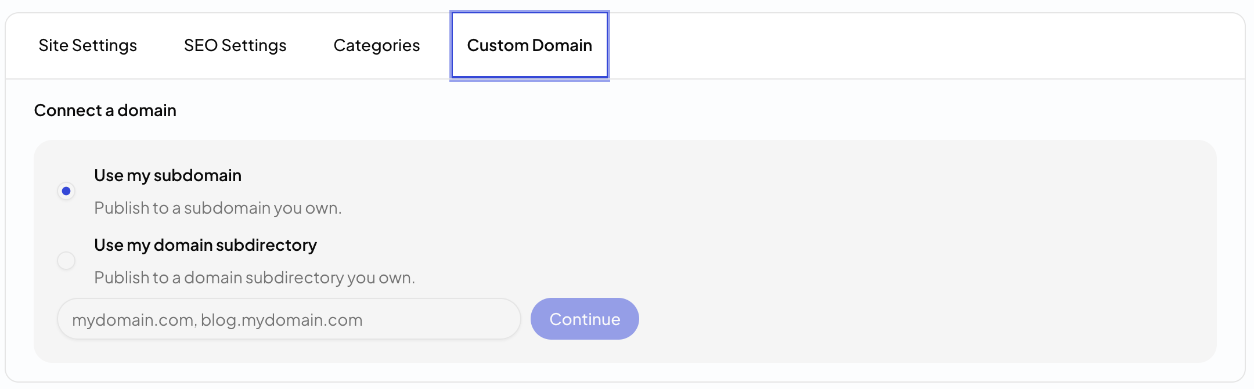
Option 1: a subdomain
For example blog.yourcompany.com.
- Choose Use my subdomain, enter the subdomain and click Continue.
- QuickCreator shows two DNS records: a CNAME record and a TXT record.
- Sign in to your domain provider and add both records exactly as shown.
- Verification is automatic. After the records are in place, it usually takes about a minute.
Option 2: a subdirectory
For example yourcompany.com/blog. This keeps the blog on your main domain.
- Choose Use my domain subdirectory, enter the address and click Continue.
- Follow the configuration guide that appears. It has examples for Nginx and Apache, so your web server forwards that folder to your QuickCreator blog.
- Republish the site.
This needs access to your web server configuration. If someone else manages your website, send them the guide.
Need help?
Email support@quickcreator.io with your domain and a screenshot of your DNS records.
Related articles
- Create a hosted blog siteLaunch a blog that QuickCreator hosts, pick a theme, and manage its settings.
- Blog SEO settings and categoriesSet your blog's homepage title, description, structured data and canonical URL, and group posts into categories.
- Connect WordPressInstall the Quickcreator Agent plugin and publish articles to your WordPress site in one click.
- Publish to your own system with an HTTP requestSend finished articles to any CMS or app through an HTTPS endpoint you control.