Review links in Page Assets
See every link in an article, edit where it points, or remove it.
Editing & quality 1 min readUpdated 2026-10-20
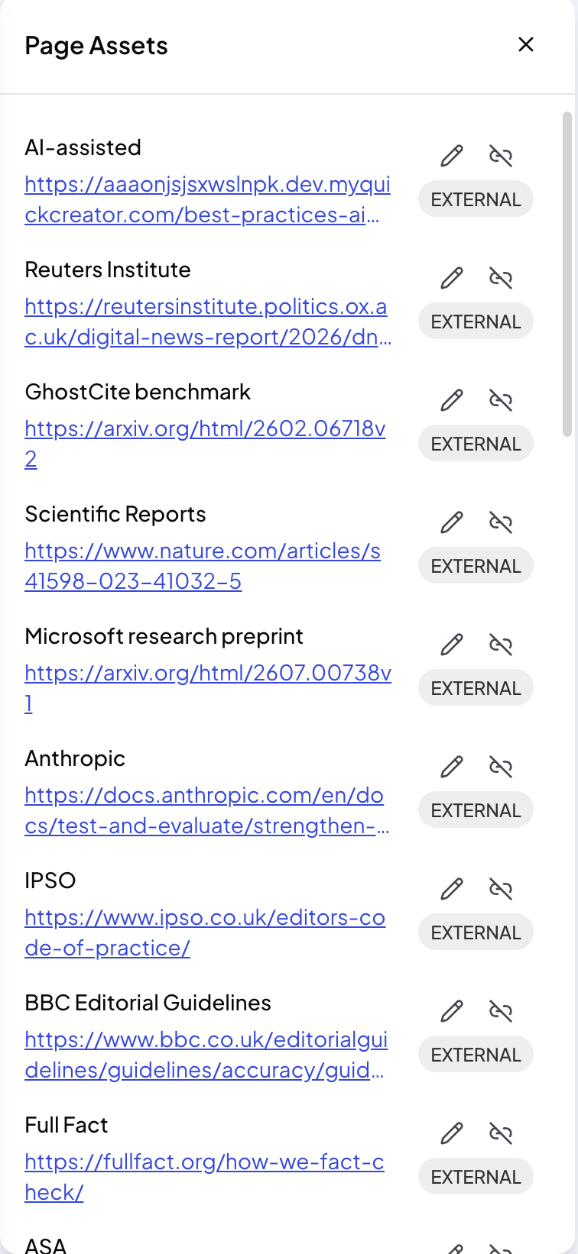
Page Assets, on the right side of the editor, lists every link in the article: the linked text, the address, and whether it points to another site (EXTERNAL) or your own (INTERNAL).
Check a link
Click the address to open the page in a new tab. Check that it still loads and that it supports the sentence it is attached to.
Change or remove a link
- The pencil icon edits the link.
- The unlink icon removes the link and keeps the text.
Keep competitors out
To remove every link to competitors at once, use Remove all competitor links in Quick Edit. To stop them being linked in future articles, add their domains to the External domain blacklist in Content Generation Settings.
Related articles
- Edit an articleFind your articles, edit them in the editor, insert blocks, preview and export.
- Use the AI assistant and Quick EditAsk the assistant to change your article, or pick a ready-made edit from Quick Edit.
- Read your Quality AnalysisWhat the rating, the E-E-A-T radar and the notes mean, and when to reanalyze.
- Import an article or start a blank postBring in an article you already have, or write one yourself in the editor.