Publish, schedule and export
Check the publish settings, publish in one click, schedule on WordPress, or export the article.
Publishing 1 min readUpdated 2026-10-20
Publish Settings
In the editor, open Publish Settings on the right.
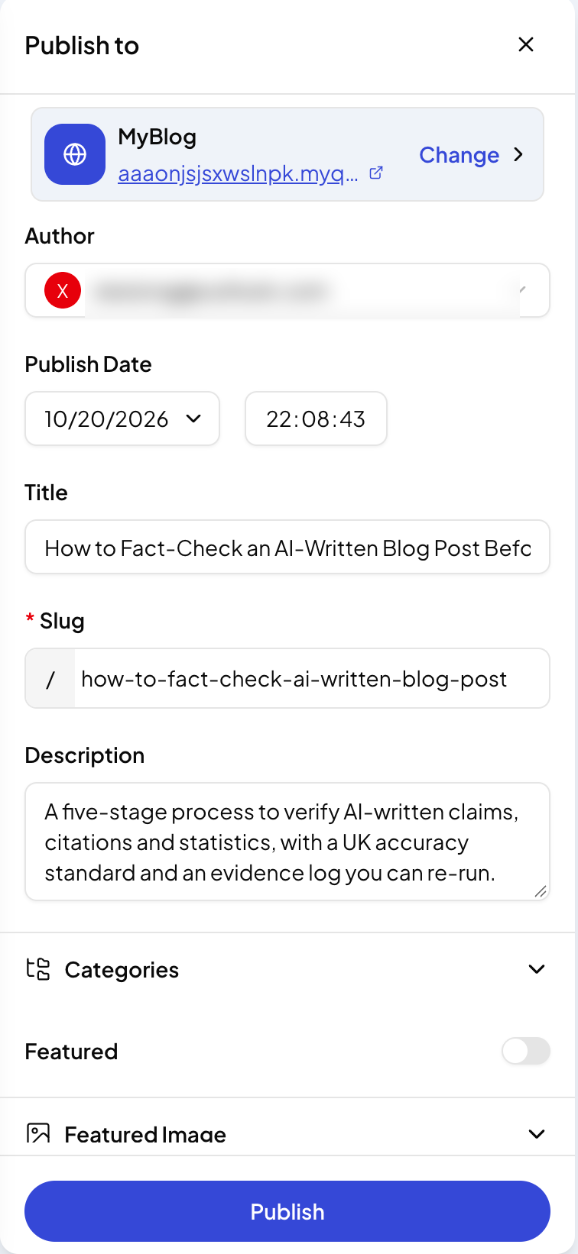
- Publish to: where the article goes. Click Change to pick a hosted blog site, WordPress or an HTTP request.
- Author and Publish Date
- Title, Slug and Description: the SEO title, URL and meta description, already written by QuickCreator. Edit them if you like.
- Categories
- Featured: mark the post as featured
- Featured Image: replace the image or edit its alt text
- Excerpt
Click Publish. The Publish button at the top of the editor does the same.
Schedule on WordPress
When publishing to WordPress, set the publish status and a Scheduled Time to have WordPress publish the post later.
Update a published article
Edit the article and click Publish again to push the changes.
Export
The download icon at the top of the editor exports the article as HTML or Markdown, or sends it to Google Docs.
From My Posts
In My Posts, the ⋯ menu on each article has Publish, Open link for published articles, Move to draft and Delete.
Related articles
- Create a hosted blog siteLaunch a blog that QuickCreator hosts, pick a theme, and manage its settings.
- Connect your own domainPut your hosted blog on a subdomain like blog.yourcompany.com, or in a folder like yourcompany.com/blog.
- Blog SEO settings and categoriesSet your blog's homepage title, description, structured data and canonical URL, and group posts into categories.
- Connect WordPressInstall the Quickcreator Agent plugin and publish articles to your WordPress site in one click.