Invite team members
Add colleagues to your workspace so they can write and manage content with you.
Account & billing 1 min readUpdated 2026-10-20
Team members share your workspace: the Brand Profile, ICPs, Knowledge Base, articles and your plan's credits.
Invite someone
- Click your name at the bottom of the sidebar, then Members.
- Click Invite team member.
- Enter their email. Click Add more to invite several people at once.
- Click Send invitation.
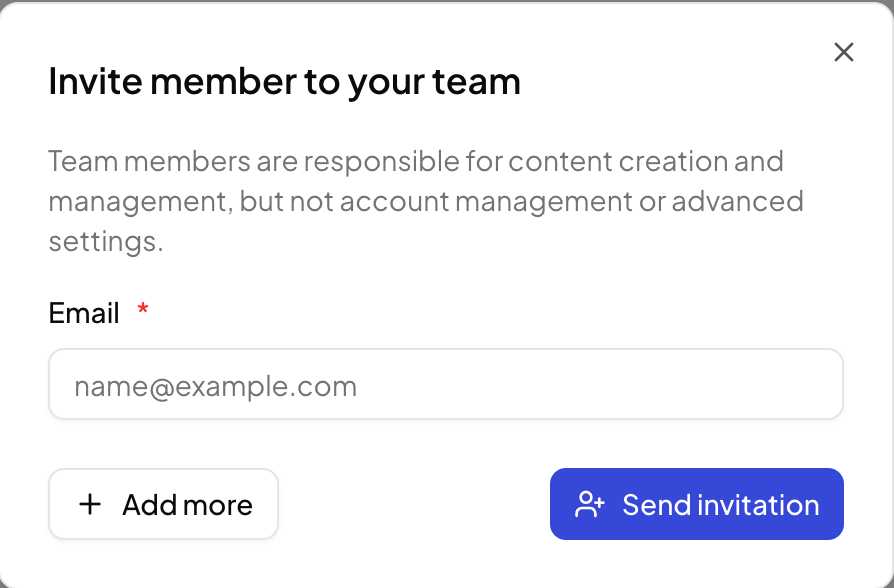
Until they accept, the member list shows Invite pending. The invited person finds your workspace under Invited You in the workspace switcher at the top of the sidebar.
What members can do
Members create and manage content. Account management and advanced settings stay with the workspace owner.
How many members
| Plan | Additional members |
|---|---|
| Personal | — |
| Professional | 1 |
| Plus | 4 |
| Enterprise | Flexible |
Need more? Owners can add extra seats under Billing & Plans. See Change or cancel your plan.
Related articles
- Plans and creditsWhat the free trial includes, how credits work, and what each plan adds.
- Change or cancel your planUpgrade, downgrade, add seats, find invoices, update your card, or cancel.
- Change the interface language and themeSwitch QuickCreator between English and Chinese, and between light and dark.