Edit an article
Find your articles, edit them in the editor, insert blocks, preview and export.
Editing & quality 1 min readUpdated 2026-10-20
Find your articles
Every article is saved in My Posts in the sidebar. Use the All, Published and Drafts tabs or the search box, and click a title to open it.
You can also open a new draft straight from the writing chat with Go to Edit/Publish.
The editor
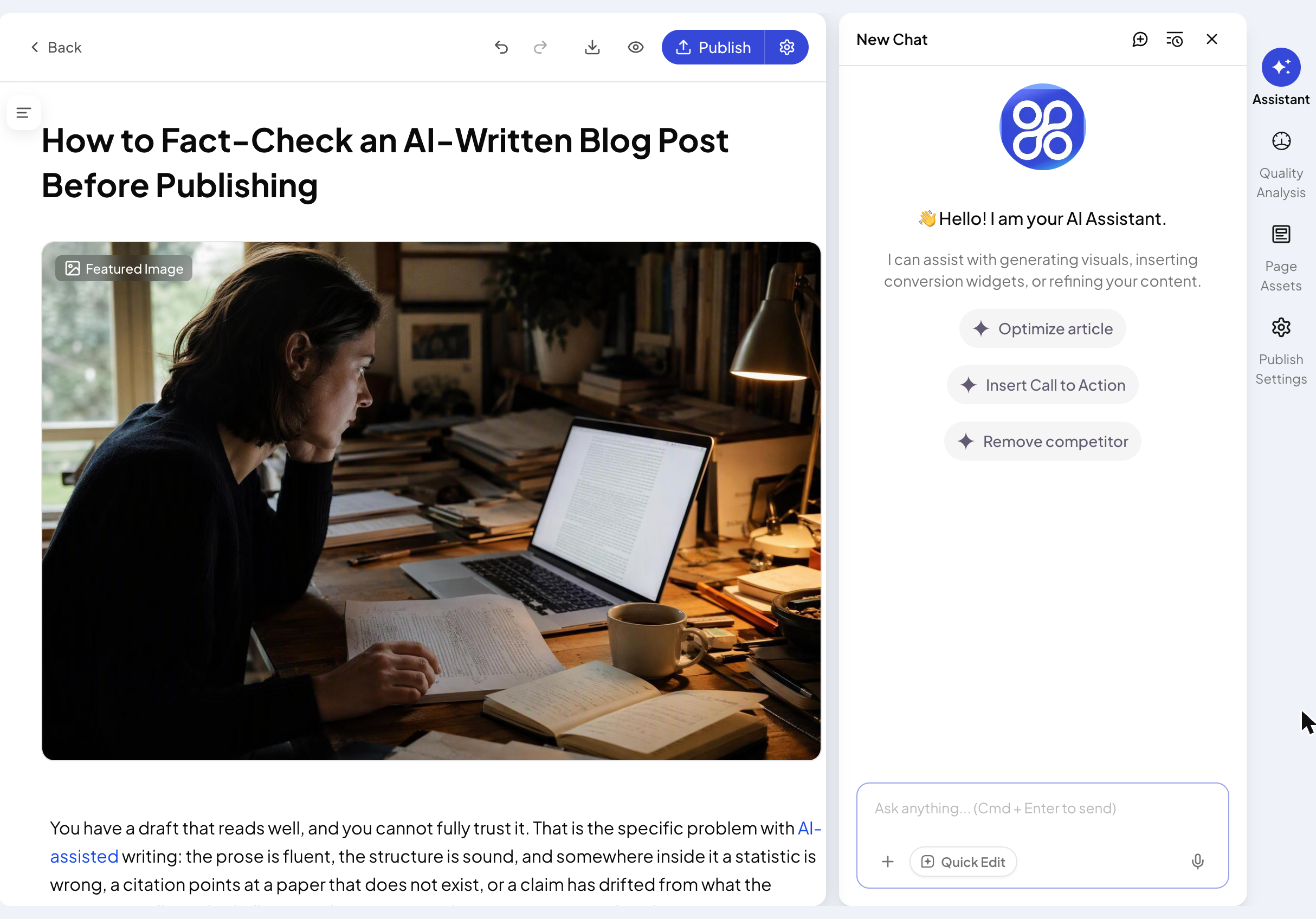
- Top bar: Back, undo and redo, export, preview, and Publish.
- Outline (the icon at the top left of the page): jump between headings.
- Right side: Assistant, Quality Analysis, Page Assets and Publish Settings.
Click anywhere in the text to edit it. Changes are saved as you go.
Insert blocks
Type / on an empty line to insert a block: headings, bullet or numbered lists, a quote, a table, a divider, an image, a YouTube or Vimeo video, a conversion widget or embed code. Ask AI in the same menu opens the assistant.
Change the featured image
The image at the top is the Featured Image. Replace it, or change its alt text, in Publish Settings.
Preview and export
- The eye icon shows a preview.
- The download icon exports the article as HTML, Markdown or to Google Docs.
Next
Related articles
- Use the AI assistant and Quick EditAsk the assistant to change your article, or pick a ready-made edit from Quick Edit.
- Read your Quality AnalysisWhat the rating, the E-E-A-T radar and the notes mean, and when to reanalyze.
- Review links in Page AssetsSee every link in an article, edit where it points, or remove it.
- Import an article or start a blank postBring in an article you already have, or write one yourself in the editor.