Create a hosted blog site
Launch a blog that QuickCreator hosts, pick a theme, and manage its settings.
Publishing 1 min readUpdated 2026-10-20
QuickCreator can host your blog for you, with SEO-friendly themes and a free address you can later replace with your own domain.
Create the site
- Open Blog Sites in the sidebar and click Create New Site.
- Enter a Site Name, choose the Default Language, and upload a Favicon (64 × 64 px) if you have one.
- Click Next, choose a theme, and create the site.
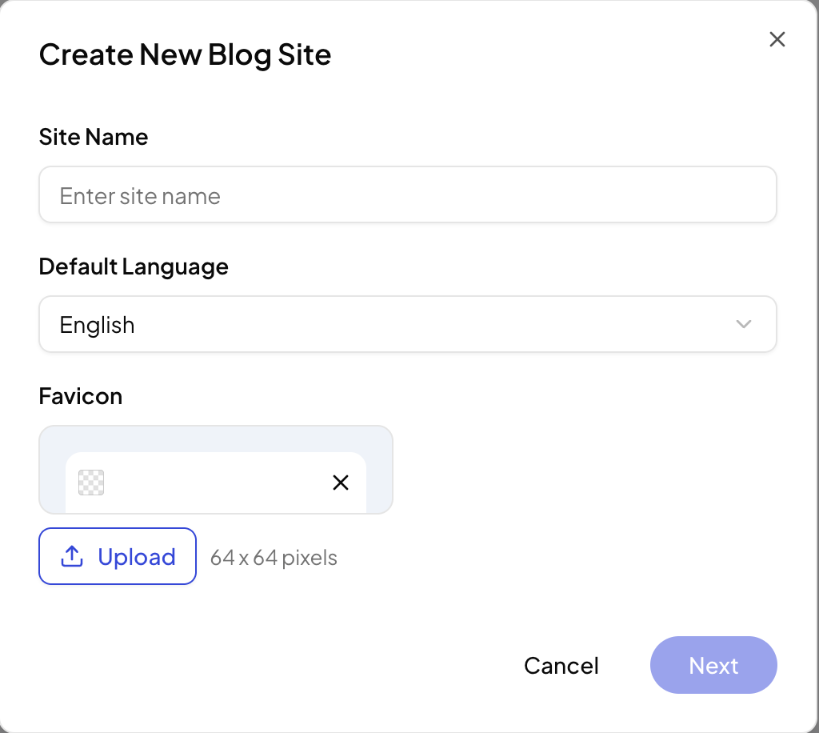
How many sites you can create depends on your plan: 1 on Personal and Professional, 3 on Plus.
Site settings
Click a site to manage it. The Site Settings tab has:
- Site name (Rename)
- Site url: a free address on
myquickcreator.com, and Connect Domain to use your own. See Connect your own domain. - Current Theme: Change it, or open the Theme Editor
- Favicon
- Custom Code: code added to every page, in the site header or body, for example analytics
- Delete Site: permanently deletes the site and its data
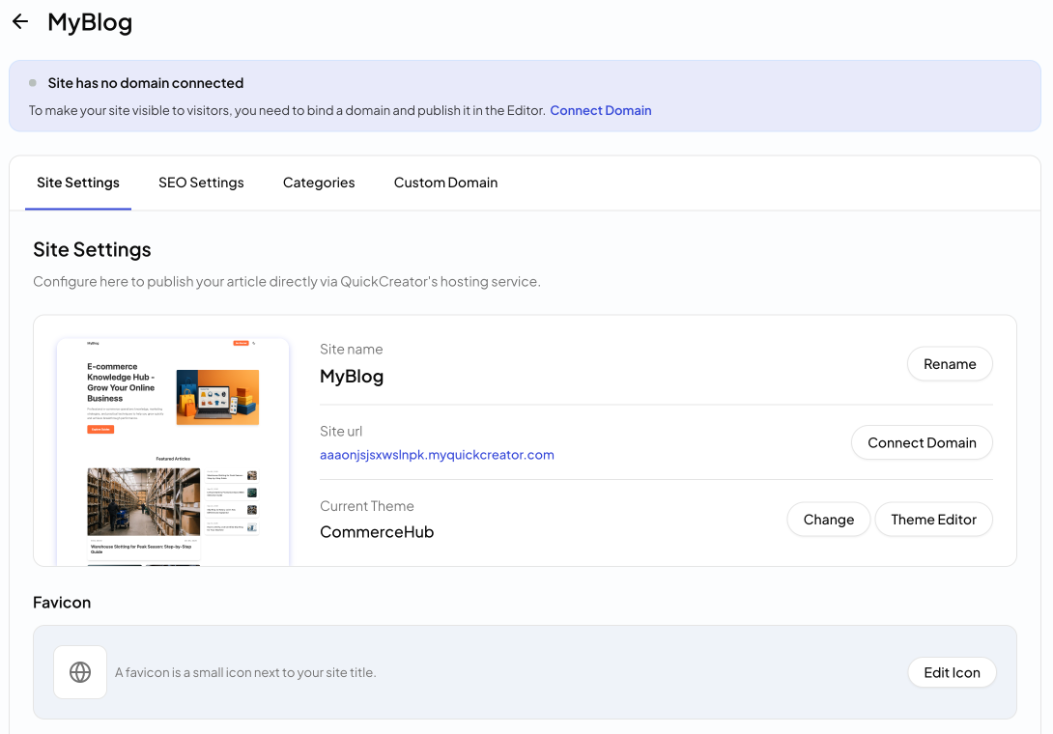
The other tabs cover SEO settings and categories and your custom domain.
Publish to it
In the editor, open Publish Settings, check that Publish to shows your site, and click Publish. See Publish, schedule and export.
Related articles
- Connect your own domainPut your hosted blog on a subdomain like blog.yourcompany.com, or in a folder like yourcompany.com/blog.
- Blog SEO settings and categoriesSet your blog's homepage title, description, structured data and canonical URL, and group posts into categories.
- Connect WordPressInstall the Quickcreator Agent plugin and publish articles to your WordPress site in one click.
- Publish to your own system with an HTTP requestSend finished articles to any CMS or app through an HTTPS endpoint you control.