Fix Knowledge Base items that can't be read
What each failure message means and how to get the content in.
Brand Center 2 min readUpdated 2026-10-20
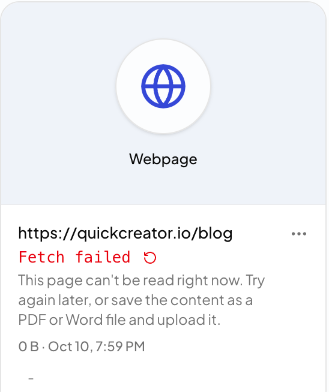
Sometimes a file or web page can't be read. The item's card then shows Fetch failed, with a short reason and what to do. Items that failed are not used in your articles until they are fixed.
What the messages mean
| Message | What to do |
|---|---|
| This site asks for human verification, so it can't be read automatically. | Save the article as a PDF and upload it. |
| This page has almost no readable text; its content may be images or behind a login. | Try another page, or save the content as a PDF or Word file and upload it. |
| This site doesn't allow automatic reading. | Download the content and upload it as a file. |
| This page can't be opened; the link may no longer work. | Check the link and add it again. |
| This page can't be read right now. | Try again later with Fetch again, or upload the content as a PDF or Word file. |
| This file can't be opened; it may be damaged or in the wrong format. | Upload the original file again. |
| This PDF is made of images and no text could be recognized. | Try again, or upload a version with selectable text. |
| This file has no readable text. | Upload a version that contains text. |
| Processing timed out. | Retry. |
| This file is too large to import (limit 50 MB). | Split the file, or remove large images, and upload it again. |
| The image couldn't be recognized. | Try again. |
| The last refetch didn't succeed; the earlier content is still in use. | Nothing breaks. Try Fetch again later if the page has changed. |
Retry a web page
Open the item's ⋯ menu and choose Fetch again.
When a site can't be read at all
Some sites block automated reading or need a login. The surest way in is a file: open the page in your browser, print or save it as PDF, and upload the PDF. See Add documents and web pages.
Storage quota exceeded
If you see Storage quota exceeded, delete items you no longer need, or move to a plan with more storage. See Search and organize your Knowledge Base.
Related articles
- Set up your Brand ProfileLet QuickCreator read your website and build the profile every article is written from, then check and edit it.
- Create an Ideal Customer ProfileDescribe a buyer to the market research assistant, then refine their goals, pain points, objections and preferences.
- Add documents and web pages to your Knowledge BaseUpload files or add website links so articles get your product facts right.
- Search and organize your Knowledge BaseFind items with AI Semantic Search, filter by type and tag, and manage each item.