Google Analytics 4 (GA4) is Google's free tool for seeing what people actually do once they land on your site — which pages they read, how they got there, and which of them take the action you care about. If Search Console shows how you appear in Google, GA4 shows what happens after the click. It has a reputation for being confusing, mostly because it works differently from the old Universal Analytics. But the beginner path is short: install it once, learn a handful of terms, and read three reports. This guide walks that path with no code beyond one copy-paste snippet.
This is the traffic-and-behavior companion to our Google Search Console walkthrough — the two tools answer different halves of the same question, and a healthy setup uses both. It also slots under our beginner's guide to blog SEO: once you're publishing content, GA4 is how you find out whether any of it is working.
What GA4 is (and why it's different)
Analytics is a free service that measures behavior on your website. The current version, GA4, replaced Universal Analytics in July 2023 — if you've seen an older tutorial that talks about "bounce rate" and "sessions" as the main story, it was describing the tool that no longer exists.
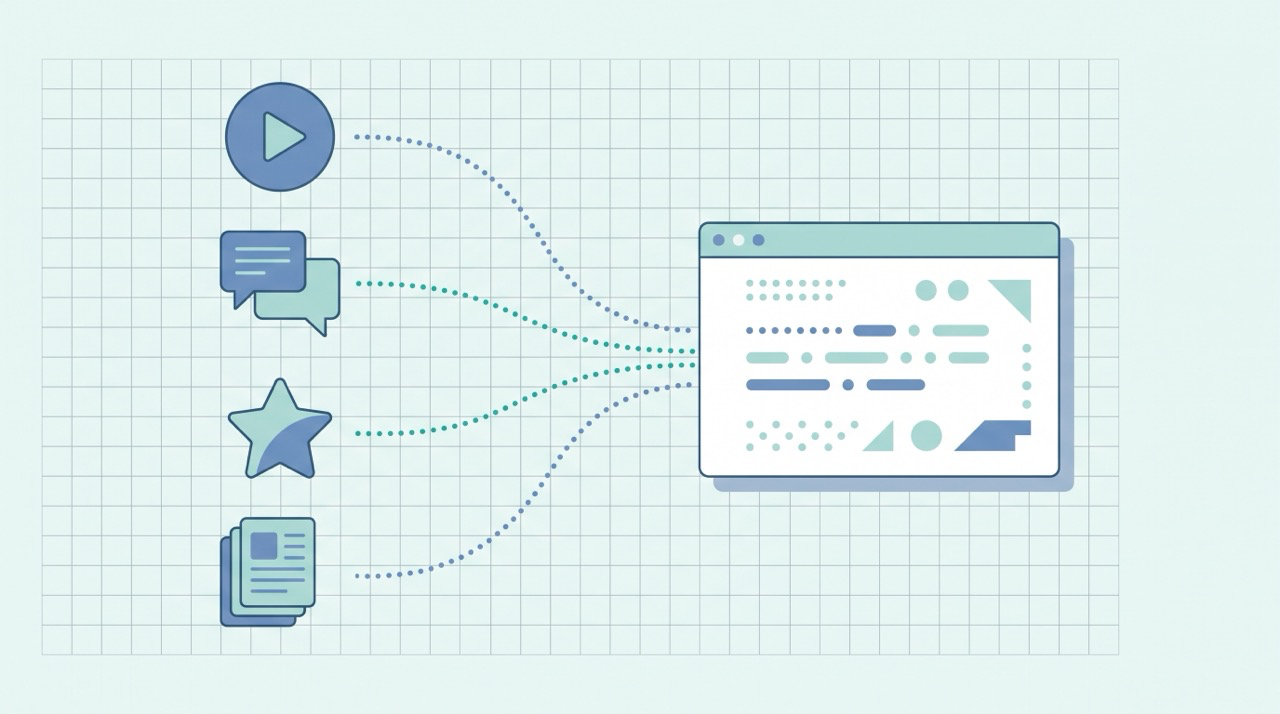
The single most important thing to understand is the shift to an event-based model. Google's own introduction states GA4 "uses event-based data instead of session-based" data. In plain terms: the old Analytics grouped activity into sessions (a visit). GA4 records individual events (an interaction) — a page view, a scroll, a click, a file download. Everything in GA4 is an event, which is why the interface feels unfamiliar at first but ends up being more flexible once it clicks.
A few things GA4 is not, so you set expectations correctly:
- It's not Search Console. Search Console reports what happens in Google's results — impressions, queries, rankings, indexing. GA4 starts the moment a visitor arrives. Different tools, different questions.
- It's not a ranking factor. Google does not use your GA4 data to rank your site. It's a measurement tool for you, not a signal for the algorithm.
- It's not retroactive. Data collection begins the day you install it. There's no history before that, so the best time to set it up is now — even if you won't look at it for months.
Step 1: Create your account, property, and data stream
Setting up GA4 means creating three nested things. Google's setup documentation walks through them; here's the beginner version:
- Account — the top container, usually your company or personal name.
- Property — the specific website (or app) you're measuring. You'll set a name, time zone, and currency.
- Data stream — the actual source of data. For a website you add a Web stream, enter your URL, and GA4 generates a Measurement ID that starts with
G-.
Leave enhanced measurement enabled when it offers — it's the setting that makes GA4 track scrolls, outbound clicks, site search, and file downloads automatically, with no extra work. That's most of what a beginner wants, for free, out of the box.
Step 2: Install the Google tag
To collect data, GA4 needs its snippet — the Google tag — on every page. You have two easy routes and rarely need to touch raw code:
- The platform way (easiest). WordPress, Webflow, Shopify, Squarespace, and most site builders have a field in their SEO or Analytics settings where you paste your
G-Measurement ID or the tag itself. One field, done. - The manual way. Copy the Google tag snippet from your data stream and paste it immediately after the opening
<head>tag on every page (a shared template or theme header does this in one place).
Once installed, open the Realtime report and load your own site in another tab — you should see yourself appear within a minute or two. That's your confirmation the tag fires; per Google's setup docs, data generally begins flowing within 30 minutes. This is the same "verify it actually works" discipline our technical SEO guide applies to everything under the hood.
The vocabulary you actually need
GA4 throws a lot of terms at you. These are the ones worth learning on day one:
- Event — any single interaction. Google defines it simply: "An event allows you to measure a specific interaction or occurrence on your website or app." A
page_viewis an event; so is a scroll or a click. - Automatically collected & enhanced measurement events — the events GA4 records for you without setup. Enhanced measurement (that checkbox from Step 1) is what adds scrolls, outbound clicks, and downloads to the default page views.
- Key event — GA4's name for what used to be called a conversion. Google describes it as "an event that measures an action that's particularly important to the success of your business" — a form submission, a signup, a purchase. Any event can be marked as a key event.
- Users vs. sessions — a user is a person; a session is one visit. One user can have many sessions. GA4 leads with users because it's built to follow a person across visits and devices.
- Engaged sessions & engagement rate — GA4's replacement for the old "bounce rate." An engaged session lasts over 10 seconds, has a key event, or includes 2+ page views. Engagement rate is the share of sessions that qualify — a more useful signal than whether someone simply "bounced."
You don't need the rest yet. Learn these six and the interface stops feeling like a foreign language.
The three reports a beginner lives in
GA4 has many reports; you'll use three at the start.
1. Realtime — is it even working?
The Realtime report shows activity from roughly the last 30 minutes. Its first job is confirmation — you just installed the tag and want to see it fire. After that, it's handy for watching a launch: publish a post, share it, and watch visitors arrive live. It's the least analytical report but the most reassuring.
2. Acquisition — how did people find you?
The Acquisition report answers where your traffic comes from, grouped into channels:
- Organic Search — visitors from unpaid Google/Bing results. This is the number to watch if SEO is your focus; it should climb as your content matures. Pair it with what your Search Console Performance report shows on the query side.
- Direct — people who typed your URL or used a bookmark (and a catch-all for untagged traffic).
- Referral — visitors from links on other sites.
- Organic Social / Email — traffic from social posts and campaigns.
Watching this mix over time tells you which of your efforts actually move people to the site — and which channels are quietly doing nothing.
3. Engagement — what did they do once here?
The Engagement report (and its Pages and screens view) is where content decisions get made. Sort by views to find your most-read pages, then read across to engagement time and key events. Two patterns to look for:
- High traffic, low engagement time — people arrive and leave fast. The page may not match what they searched for, or the intro buries the answer. This is exactly what our on-page SEO checklist helps you fix.
- High engagement, low traffic — a genuinely good page few people find. That's an SEO and internal-linking opportunity, not a content problem.
A simple beginner routine
GA4 rewards a light, steady habit over an obsessive one:
- After publishing: open Realtime for a minute to confirm the page is tracking, then note the URL to check back on.
- Weekly (5 minutes): glance at Acquisition — is Organic Search trending up? Any new channel surprising you?
- Monthly: open Engagement, find your best and worst performing posts, and let that steer what you write and update next.
Set one or two key events early (even just "contact form submitted") so GA4 measures outcomes, not just pageviews. A number tied to your goal is worth more than a hundred vanity metrics.
Where analytics meets AI search
Here's a growing blind spot GA4 doesn't fully solve. When ChatGPT, Perplexity, or Google's AI Overviews answer a question using your content but the user never clicks through, that visit never reaches your site — so it never shows up in GA4. This is the "zero-click" reality of AI search, and it means traditional analytics increasingly undercounts your true influence.
GA4 still matters: it's the ground truth for the traffic you do receive. But measuring AI visibility is a separate discipline — start with how to check if AI mentions your brand, and understand the shift itself in our primer on what Generative Engine Optimization (GEO) is. The healthiest picture combines all three: Search Console for how Google sees you, GA4 for what visitors do, and AI-visibility tracking for the clicks that never happen.
Common beginner mistakes to avoid
- Never installing it. The most expensive miss — every day without the tag is history you can't get back, since GA4 isn't retroactive.
- Reading old (Universal Analytics) tutorials. If a guide centers on "bounce rate" as the headline metric, it's describing the retired tool. Learn GA4's engagement rate instead.
- Never setting a key event. Without one, GA4 measures activity but not success. Mark at least one action that matters.
- Obsessing over daily numbers. Traffic wobbles day to day. Judge trends over weeks, the same way you would in Search Console.
- Confusing it with Search Console. They're complementary, not interchangeable — one covers before the click, the other after.
Frequently asked questions about Google Analytics 4
Is Google Analytics 4 free?
Yes. GA4 is free for the vast majority of sites. There's a paid enterprise tier (Analytics 360) built for very high-volume businesses, but you'll almost certainly never need it.
Do I need both GA4 and Search Console?
Ideally yes. Search Console shows how you appear in Google Search (queries, impressions, indexing); GA4 shows what visitors do once they're on your site. They cover different halves of the journey, and both are free.
Why is GA4 so different from the old Analytics?
Because it was rebuilt on an event-based model instead of the session-based one Universal Analytics used. Every interaction is now an "event," which is more flexible but takes some relearning if you knew the old interface.
Do I need to know how to code to use GA4?
No. On most website platforms you paste a single Measurement ID into a settings field. The manual option is one snippet in your page's <head>, and every report is read in the dashboard.
How long until I see data?
Realtime shows activity within a minute or two of installing the tag; standard reports generally begin populating within a day. Remember it only reflects data from the moment you set it up forward.
The bottom line
Google Analytics 4 is the free instrument panel for what happens after someone clicks: install the Google tag once, learn six terms (event, key event, users, sessions, engagement), and read three reports — Realtime to confirm it works, Acquisition for how people find you, and Engagement for what they do. Skip the intimidating advanced features until you need them. Paired with Google Search Console, it turns "I think my content is working" into a number you can actually check.
Measuring is the easy half — producing content worth measuring is the work, and that's what QuickCreator is built for: it researches, drafts, and structures SEO-ready posts designed to earn the organic traffic GA4 reports back to you.
Try QuickCreator free and turn your analytics from a scoreboard into a content engine.