How to integrate a website with WhatsApp (click-to-chat links, WhatsApp Business Platform, and share buttons)

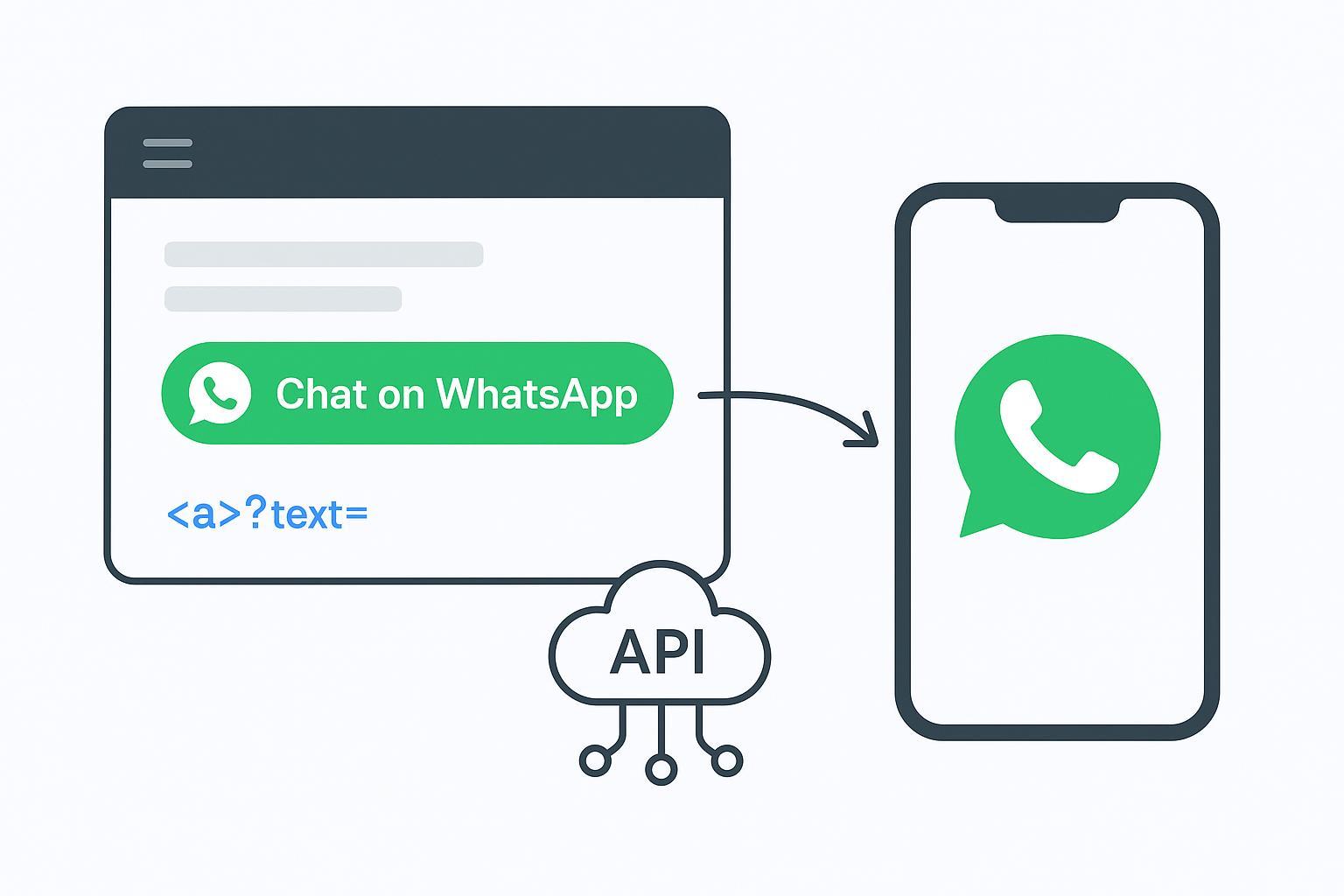
Want visitors to start chatting with you on WhatsApp in one click—or share your pages to WhatsApp—without wrestling with complex code? This guide shows three practical integration patterns you can implement today: Click‑to‑Chat links/buttons, Share‑to‑WhatsApp buttons, and the WhatsApp Business Platform (Cloud API) for programmatic messaging.
What you’ll accomplish
- Add a “Chat on WhatsApp” button anywhere on your site
- Let visitors share your page/product to their WhatsApp contacts
- Understand and set up the Cloud API for automated messaging and webhooks
Before you start
- Difficulty:
- Click‑to‑Chat: Beginner (5–10 minutes)
- Share button: Beginner (5–10 minutes)
- Cloud API: Advanced (30–90 minutes, depending on verification)
- Prerequisites: A WhatsApp‑registered phone number, access to your website’s HTML/CMS, and for Cloud API a Meta developer account and business verification.
- Device behavior to expect: On mobile, links open the WhatsApp app. On desktop, they open WhatsApp Web or the Desktop app.
Choose the right integration (quick decision guide)
- Use Click‑to‑Chat if your goal is immediate human conversations from landing pages, contact pages, support hubs, or product pages.
- Use Share‑to‑WhatsApp if your goal is letting visitors share your page or product with their contacts.
- Use the Cloud API if you need automation, CRM integration, approved templates for business‑initiated messages, and webhook events at scale. Start with Meta’s official overview in the WhatsApp Cloud API documentation.
Method 1: Click‑to‑Chat links and buttons (fastest)
Click‑to‑Chat opens a chat with your number and can include prefilled text.
Formats (use E.164 digits only for the phone number)
- Basic link:
- wa.me:
https://wa.me/<E164_number> - api.whatsapp.com:
https://api.whatsapp.com/send?phone=<E164_number>
- wa.me:
- With prefilled text:
- wa.me:
https://wa.me/<E164_number>?text=<URL_ENCODED_MESSAGE> - api.whatsapp.com:
https://api.whatsapp.com/send?phone=<E164_number>&text=<URL_ENCODED_MESSAGE>
- wa.me:
Number formatting (E.164) and encoding tips
- E.164 example: +1 (631) 555‑0100 →
16315550100(digits only, include country code; no plus sign, spaces, or dashes in the wa.me path). - Always URL‑encode your message text: spaces →
%20,&→%26,?→%3F. - Official behavior and parameters align with WhatsApp’s guidance in WhatsApp’s Click to Chat FAQ.
Copy‑paste examples
Inline button
<a href="https://wa.me/16315550100?text=Hi%20there%2C%20I%27d%20like%20to%20know%20more"
   target="_blank"
   rel="noopener"
   aria-label="Chat on WhatsApp">
  Chat on WhatsApp
</a>
Floating bubble (basic CSS)
<a class="wc-wa-float"
   href="https://wa.me/16315550100?text=Hi%20there"
   target="_blank"
   aria-label="Chat on WhatsApp"></a>
<style>
  .wc-wa-float{position:fixed;right:16px;bottom:16px;width:56px;height:56px;border-radius:50%;
    background:#25D366;display:inline-block;box-shadow:0 4px 10px rgba(0,0,0,.2)}
  .wc-wa-float:before{content:'\1F4AC';display:block;color:#fff;text-align:center;line-height:56px;font-size:24px}
</style>
WordPress (manual)
- Add a “Custom HTML” block and paste either example above. Save, clear cache/CDN, and test.
- If a security plugin blocks opening new tabs, ensure
target="_blank"is allowed.
Optional: QR code for cross‑device flow
- Generate a QR code of your
wa.melink. Show it on desktop pages so users can scan and open the chat on mobile.
Test it now
- On mobile: Tap the button and confirm WhatsApp opens with prefilled text.
- On desktop: Click the button and confirm WhatsApp Web/Desktop opens.
- If text looks broken, paste the entire URL into a URL decoder and re‑encode properly.
Troubleshooting
- Wrong number: Verify E.164 digits and country code; remove leading zeros after country code.
- Nothing happens (desktop): Try another browser; ensure WhatsApp Web isn’t blocked by firewall.
- Pop‑up blocked: Some extensions block new tabs; ensure
target="_blank"and advise users if needed. - WordPress cache: Purge cache/CDN after changing links or styles.
Method 2: Share‑to‑WhatsApp buttons
Let visitors share your page (title + URL) to their contacts. The standard share pattern uses api.whatsapp.com/send?text= with URL‑encoded content. Link preview behavior is documented in Meta’s Link Previews guide.
Copy‑paste example
<a aria-label="Share on WhatsApp"
   rel="noopener"
   target="_blank"
   href="https://api.whatsapp.com/send?text=Check%20this%20out%3A%20https%3A%2F%2Fexample.com%2Fproduct">
  Share on WhatsApp
</a>
Implementation tips
- Encode the entire
textvalue. If you include your page URL, encode it or use a shortlink. - For analytics, route the share through a redirect URL that appends UTM tags before landing on your product page.
Test it now
- Mobile: Confirm it opens WhatsApp with a prefilled message and lets the user choose a recipient.
- Desktop: Confirm it opens WhatsApp Web’s share dialog.
Troubleshooting
- No preview: Ensure you’re sharing a canonical URL with appropriate Open Graph metadata on your page. Then retest; previews are determined by WhatsApp’s fetch behavior and may vary.
- Broken text: Re‑encode special characters (
&,?,#).
Method 3: WhatsApp Business Platform (Cloud API)
Use the Cloud API when you need programmatic messaging, automation, template messages outside the 24‑hour session, and webhook events.
Start here
- Read the official Cloud API overview by Meta for Developers and follow Getting started.
Essential onboarding steps
- Create a Meta for Developers app and add the WhatsApp product.
- Attach or create a WhatsApp Business Account (WABA).
- Complete Business Verification in Business Settings.
- Add and verify a phone number to use as your sender.
- Generate a permanent access token via Business Settings → System Users; assign permissions (whatsapp_business_messaging, whatsapp_business_management, business_management). Store it securely.
Send a test message (Graph API)
curl -X POST \
  https://graph.facebook.com/v19.0/{phone-number-id}/messages \
  -H 'Authorization: Bearer {access-token}' \
  -H 'Content-Type: application/json' \
  -d '{
    "messaging_product": "whatsapp",
    "to": "16315550100",
    "type": "text",
    "text": {"body": "Hello, this is a test message!"}
  }'
Reference: Meta’s Messages API.
Message templates (for business‑initiated or outside the 24‑hour window)
- Learn how to create and send templates in Meta’s Send Message Templates guide and see creation details in Message Template creation.
- Template categories include Utility, Marketing, and Authentication; approval is required before use.
Webhooks (receive events from WhatsApp)
- Set up webhooks following Meta’s Webhook setup guide and review payload examples.
- Subscribe to relevant webhook fields documented in Webhook fields reference and validate your callback URL token.
Throughput and limits
- Per Meta, Cloud API supports up to 80 messages per second per number by default, with automatic upgrades available. See Cloud API throughput by Meta (reference).
Test it now
- Send a template message to a test number and confirm delivery.
- Trigger a webhook event (e.g., reply from your test device) and verify your server logs receive the payload.
Troubleshooting
- 401/403 errors: Check token validity, app permissions, and WABA association.
- Template rejected: Revise content per categories and policy, then resubmit.
- Webhook not firing: Verify subscription fields, URL reachability, and token verification.
Compliance and privacy essentials
WhatsApp enforces policies to protect users. Make sure your implementation respects them.
- Obtain clear opt‑in consent before messaging users and provide a visible opt‑out. See the WhatsApp Business Messaging Policy.
- Freeform replies are allowed within the 24‑hour session after a user’s message. Outside that window, use approved templates. Learn more in Meta’s template guidance above.
- Avoid prohibited content and restricted industries per the WhatsApp Commerce Policy and Business Terms.
- Be cautious with personally identifiable information in prefilled text. Prefer short, user‑initiated messages like “Hi, I’d like to know more about…”
- Place your privacy notice near the WhatsApp entry points (buttons or forms) and link to your full privacy policy.
Platform and implementation tips
- WordPress: Use a Custom HTML block. After changes, purge cache/CDN. If pop‑ups are blocked, adjust plugin settings or open in the same tab.
- Shopify: Add the link to a custom Liquid section or the theme’s footer/header. Test on product pages and cart.
- CSP and security headers: If you use
window.openor embed via scripts, ensure your Content Security Policy allowshttps://wa.meandhttps://api.whatsapp.comas needed. - Accessibility: Always include meaningful
aria-labelvalues, maintain color contrast, and ensure focus visibility.
Common issues and fixes
- “Chat opens the wrong number” → Re‑format your number in E.164 and remove leading zeros after the country code.
- “Text breaks or shows symbols” → URL‑encode the entire message. Avoid raw
&or?insidetext=parameters. - “Nothing happens on desktop” → Check firewall settings, try another browser, or install WhatsApp Desktop for smoother behavior.
- “Button not visible on mobile” → Increase z‑index or adjust placement; ensure it doesn’t overlap critical UI.
- “Link preview missing” → Confirm canonical URL and Open Graph metadata; previews depend on WhatsApp’s fetch logic.
Accessibility checklist (quick pass)
- Provide a descriptive
aria-labellike “Chat on WhatsApp.” - Keep color contrast readable (WhatsApp green #25D366 on light backgrounds with white text works well).
- Ensure keyboard navigation and focus outlines are visible.
- Place buttons with safe margins (16–20px) on small screens.
Verification checklist (final self‑check)
- Click‑to‑Chat: Opens WhatsApp to the correct number with correct prefilled text on mobile and desktop.
- Share button: Opens WhatsApp’s share dialog and includes your title + URL correctly.
- QR flow: Scanning on desktop opens the correct chat on mobile.
- Cloud API: You can send a test template message and receive webhook events at your endpoint.
- Compliance: Opt‑in and opt‑out are clear, and policy links are present near entry points.
Tools you can use (neutral options)
- If you publish and manage content frequently, QuickCreator can help you add and maintain WhatsApp links/buttons across pages using its block‑based editor and hosting or WordPress publishing. Disclosure: QuickCreator is our product.
- For planning CMS/hosting and content workflow, see QuickCreator Pricing.
- Exploring WhatsApp capabilities beyond this guide? You can learn how to create and share group invites in 5 Steps to Create a WhatsApp Group Link Easily.
Copy‑paste templates
Click‑to‑Chat (replace the number and message)
<a href="https://wa.me/16315550100?text=Hi%20team%2C%20I%27m%20interested%20in%20your%20pricing"
   target="_blank" rel="noopener" aria-label="Chat on WhatsApp">
  Chat on WhatsApp
</a>
Share‑to‑WhatsApp (replace with your page URL and title)
<a aria-label="Share on WhatsApp" target="_blank" rel="noopener"
   href="https://api.whatsapp.com/send?text=Check%20this%20product%3A%20https%3A%2F%2Fexample.com%2Fproduct">
  Share on WhatsApp
</a>
Cloud API: minimal server test (pseudo‑flow)
# Send a text message via Graph API
curl -X POST \
  https://graph.facebook.com/v19.0/{phone-number-id}/messages \
  -H 'Authorization: Bearer {access-token}' \
  -H 'Content-Type: application/json' \
  -d '{
    "messaging_product": "whatsapp",
    "to": "16315550100",
    "type": "text",
    "text": {"body": "Hello from Cloud API"}
  }'
Where to learn more (official docs)
- Click‑to‑Chat behavior: WhatsApp Click to Chat FAQ
- Cloud API overview and onboarding: Meta for Developers — WhatsApp Cloud API and Getting started
- Messages reference and templates: Messages API and Send Message Templates
- Webhooks: Setup guide and Payload examples
- Throughput: Cloud API throughput reference
- Policies: Business Messaging Policy, Commerce Policy, Business Terms
