Managing and Adding Page Keywords in WordPress: Fix “Keyword Missing” Warnings the Right Way
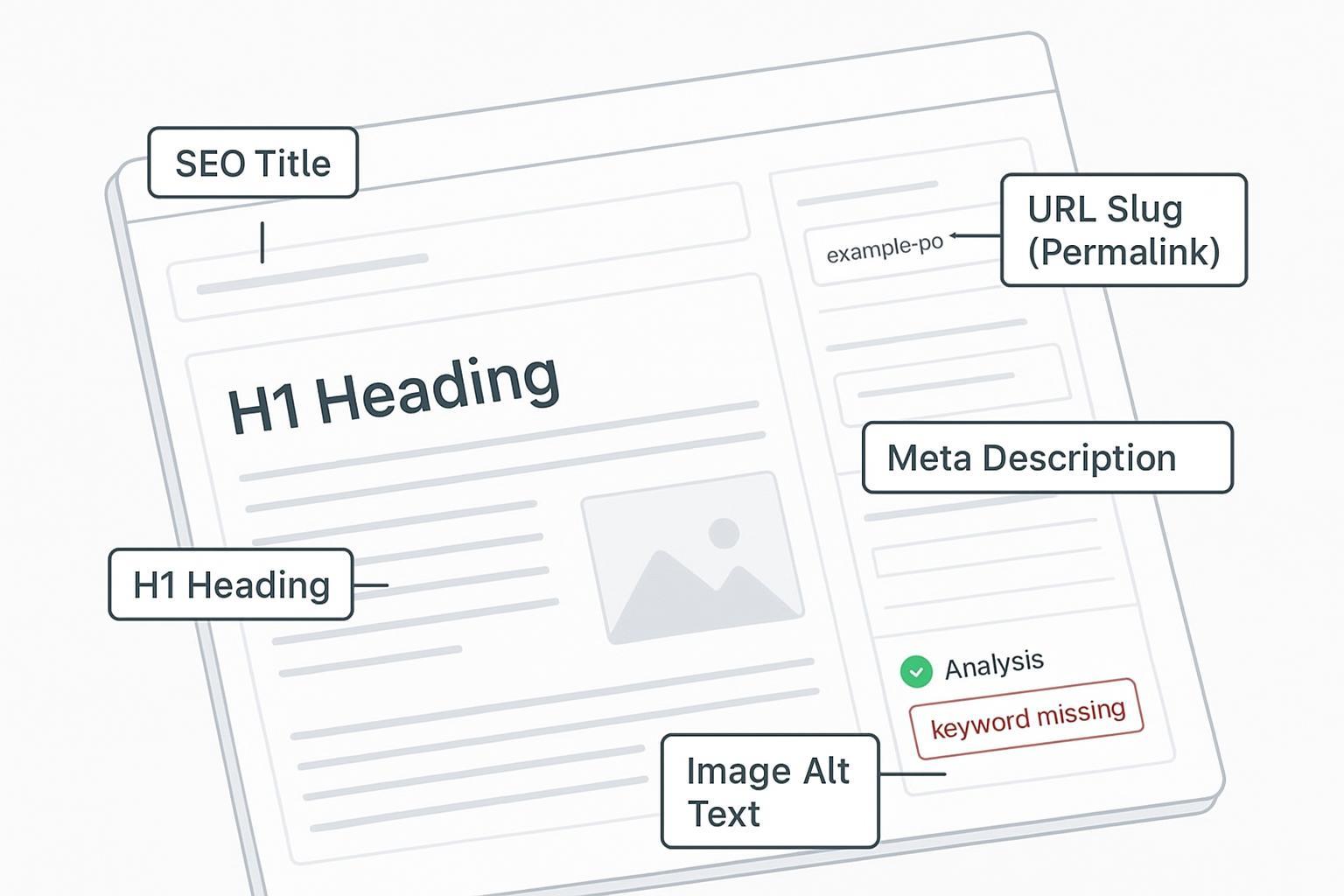
If your SEO plugin keeps flagging “keyword missing,” this guide will help you fix it quickly and correctly. You’ll learn exactly where to place your focus keyphrase in WordPress (title, H1, meta description, URL, headings, body, image alt, internal links) and how to clear those warnings in Yoast SEO, Rank Math, and AIOSEO—without using the obsolete meta keywords tag.
- Time required: 45–75 minutes for a full pass on one page
- Difficulty: Beginner to intermediate
- You’ll need: Access to your WordPress editor and one SEO plugin (Yoast, Rank Math, or AIOSEO). Avoid running multiple SEO plugins at once—they conflict.
Why no “meta keywords”? Google has stated it does not use the keywords meta tag for ranking; focus on supported elements like titles and descriptions instead, per Google Search Central’s guidance on meta tags and attributes that Google supports (updated 2024). Meta descriptions matter for snippets and CTR, not direct ranking, as explained in Google’s write meta descriptions documentation (2024–2025).
Before you start: What “keyword” means here
In WordPress and popular plugins, your “keyword” is your focus keyphrase—the primary search phrase a page should target. If you’re unsure how that differs from broader topics, skim this explainer on keywords vs. topics to align terminology.
From experience: the fastest wins come from aligning your keyphrase with search intent and placing it where users and search engines will actually see it. If you’re still picking terms, review this primer on aligning keywords with search intent before optimizing.
Quick placement checklist (what to optimize and why)
Use this as your map. You’ll fix warnings faster if you hit each spot once, then verify.
- SEO title (title tag): Put the focus keyphrase near the start for relevance and visibility. Verify in your plugin’s SERP preview. Google’s own docs emphasize titles and descriptions among supported elements in its meta tags overview.
- H1 (post/page title): Make the H1 naturally include the keyphrase to reinforce topical focus. Beginner guides like WPBeginner’s focus keyphrase overview highlight H1 and content placement.
- Meta description: Include the keyphrase early, write for humans, and stay within recommended length. See Google’s guidance on meta descriptions and snippets (2024–2025) for best practices.
- URL slug (permalink): Use a concise slug that contains the keyphrase (avoid filler words). If you change a published slug, plan a 301 redirect.
- Subheadings (H2/H3): Add the keyphrase or a close variant to at least one subheading to signal structure.
- Body content: Use the keyphrase in the first paragraph and a few times naturally throughout. Avoid stuffing.
- Image alt text: Add the keyphrase to at least one relevant image’s alt attribute for accessibility and image SEO.
- Internal links: Link to and from related pages with descriptive anchors; include variants where natural. For a broader grounding, see SEO explained.
Tip: Fix placements first, then handle plugin-specific warnings. Many checks overlap.
Yoast SEO: Fixing “keyword missing” step by step
Yoast’s analysis checks if your focus keyphrase appears in specific places. Here’s how to clear the common warnings.
- Set your Focus Keyphrase
- In the post editor, open the Yoast SEO panel (sidebar or meta box).
- Enter your focus keyphrase (exact match) in the Focus keyphrase field.
- Address element-by-element warnings
- SEO title: Click “Edit SEO title.” Place the keyphrase near the start; keep it readable.
- Meta description: Write a compelling description and include the keyphrase early; watch length in the preview bar.
- Slug: Click Permalink or URL Slug; include the keyphrase, use hyphens, and keep it short.
- Headings: Add the keyphrase (or a close variant) to at least one H2/H3.
- Body: Use the keyphrase in the first paragraph; add natural mentions elsewhere.
- Image alt: Add the keyphrase to at least one relevant image alt.
- Refresh analysis and verify
- Click Update to save changes. Yoast often needs a save to re-score.
- If the analysis doesn’t refresh, reload the editor. If you use a page builder, ensure key content isn’t hidden from Yoast’s analyzer.
- Use the SERP preview to confirm title/description look good and include the keyphrase.
Useful reference: Yoast’s beginner’s guide to Yoast SEO covers how its analysis works and where fields live.
From experience: If a field looks right but Yoast still warns “missing,” check for extra spaces, punctuation attached to the keyphrase, or using only a synonym when Yoast expects an exact match.
Rank Math: Clearing focus keyword warnings
Rank Math checks for your focus keyword(s) in similar places and provides additional tools.
- Add your focus keyword(s)
- In the editor, open the Rank Math meta box.
- Add your primary keyword (and up to a few variations if needed). Keep the main one first.
- Fix common warnings
- Not found in SEO title/meta description/URL/first paragraph/headings: Edit each field so the main keyword appears naturally and early where appropriate.
- Meta description too long: Trim to around 155–160 characters for most cases and ensure the keyword appears early.
- Re-run analysis and, if needed, rebuild scores
- Click Update to rescore. If checks seem stuck, clear caching and CDN.
- In Rank Math → Status & Tools → Database Tools, use Recalculate SEO Scores and Rebuild Index if the analyzer seems out of sync.
Helpful how-to: Rank Math’s guide on fixing SEO tests with Content AI also covers many of these checks and remediation steps.
Pro tip: Don’t add too many focus keywords. Spreading effort across five unrelated terms can make on-page placement look thin and keep warnings active.
All in One SEO (AIOSEO): Resolving TruSEO checks
AIOSEO’s TruSEO analysis flags similar issues and is straightforward to fix.
- Set your Focus Keyphrase
- Open AIOSEO Settings in the post editor.
- Enter the focus keyphrase.
- Fix the flagged elements
- SEO title: Put the keyphrase near the start; keep it natural.
- Meta description: Include the keyphrase early; adjust length per the meter.
- Slug: Ensure the keyphrase appears in the permalink; avoid stop-words.
- Introduction: Mention the keyphrase in the first paragraph.
- Headings and body: Add the keyphrase or close variants where it fits.
- Image alt: Add the keyphrase to at least one relevant image’s alt text.
- Refresh and verify
- Click Update to rescore; AIOSEO re-runs checks automatically.
- Optional: Use AIOSEO’s Site Audit later to catch broader issues.
Reference: AIOSEO’s explainer on what a focus keyword is aligns with how TruSEO evaluates placements.
From experience: AIOSEO can be stricter about the exact-match keyphrase in the intro and slug. If you used a variation, try adding one exact mention.
No plugin? Optimize manually (works fine)
You can still optimize the key placements without an SEO plugin.
- H1 (post title): Include the keyphrase naturally.
- Slug: Edit the permalink to include the keyphrase; keep it short. If changing a live URL, set up a 301 redirect via your host or a redirection plugin.
- Body: Use the keyphrase in the first paragraph and naturally elsewhere. Avoid stuffing.
- Image alt text: Add the keyphrase to at least one relevant image alt.
- Internal links: Add descriptive, relevant anchors to and from related content.
- Title tag and meta description: If your theme exposes SEO title/meta fields, use them. Otherwise, consider adding them programmatically or with a lightweight SEO/meta plugin.
Verification without a plugin:
- View page source to confirm the title tag and meta description.
- Load the page in a browser and check the URL, headings, and alt text.
- Monitor performance in Google Search Console over time for the target keyphrase.
Practical example: Draft and ship keyword-aligned metadata faster
Use one tool to draft your on-page elements, then publish to WordPress.
- Generate an SEO title, H1, and meta description that include your focus keyphrase.
- Draft a concise, keyword-bearing slug.
- Paste them into your WordPress editor and plugin fields; update and verify.
You can do this in QuickCreator. Disclosure: QuickCreator is our product.
Note: Keep copy human and natural; plugins reward readability as much as keyword presence.
Troubleshooting: If the warning won’t go away
Run through these fixes in order; most issues clear after a save and cache purge.
- Save/Update and reload: Many plugins only rescore after you click Update. Reload the editor to refresh the analysis panel.
- Clear caches and CDN: Purge caches in your caching plugin (e.g., WP Rocket), server-level cache (e.g., Varnish/Redis), and your CDN (e.g., Cloudflare). Caches can hide your latest edits.
- Recalculate plugin scores: In Rank Math, use Status & Tools → Database Tools → Recalculate SEO Scores and Rebuild Index if analysis seems stale. See their guidance on fixing SEO tests.
- Avoid multiple SEO plugins: Running Yoast, Rank Math, and AIOSEO together causes conflicts. Deactivate extras and test again.
- Check exact-match vs. variants: If you used a synonym, try one exact-match mention in the title/H1/intro.
- Remove stray punctuation/HTML: Unusual punctuation around the keyphrase or hidden HTML can prevent detection.
- Page builder visibility: If your intro lives in a builder widget, the plugin might not “see” it. Add one sentence with the keyphrase in the native editor intro.
- Slug changes on live pages: Always set a 301 redirect from the old URL to the new one. This preserves equity and prevents 404s.
- Permalinks refresh: If slugs don’t “stick,” go to Settings → Permalinks and click Save Changes to refresh rewrite rules.
- Still stuck? As a fallback, consult Yoast’s beginner’s guide, AIOSEO’s focus keyword explainer, or Rank Math’s fix tests guide for plugin-specific quirks.
Verification checklist (5-minute final pass)
Do this once after edits to ensure everything is recognized correctly.
- Focus keyphrase set in your SEO plugin.
- SEO title includes the keyphrase near the start; preview looks compelling.
- H1 includes the keyphrase naturally.
- Meta description includes the keyphrase early and fits the length meter.
- URL slug is short, readable, and contains the keyphrase; 301 redirect set if changed after publishing.
- At least one H2/H3 contains the keyphrase or a close variant.
- First paragraph includes the keyphrase; body mentions are natural, not stuffed.
- At least one image alt includes the keyphrase.
- Internal links added with descriptive anchors to related pages.
- Saved/Updated, caches cleared, analysis panel shows warnings resolved.
Why this works (and what not to do)
- Search engines evaluate visible content and supported meta tags—not meta keywords. See Google’s overview of supported meta tags for current guidance (updated 2024), and its note that meta descriptions influence snippets rather than ranking in the meta descriptions guide (2024–2025).
- Don’t stuff keywords or repeat exact matches in every heading. Variants are fine; readability wins.
- Don’t change slugs casually on established pages—plan redirects and update internal links.
Stick to the checklist, verify after each save, and you’ll consistently clear “keyword missing” warnings while strengthening on-page relevance.
