Wan animate makes character swaps easy for everyone

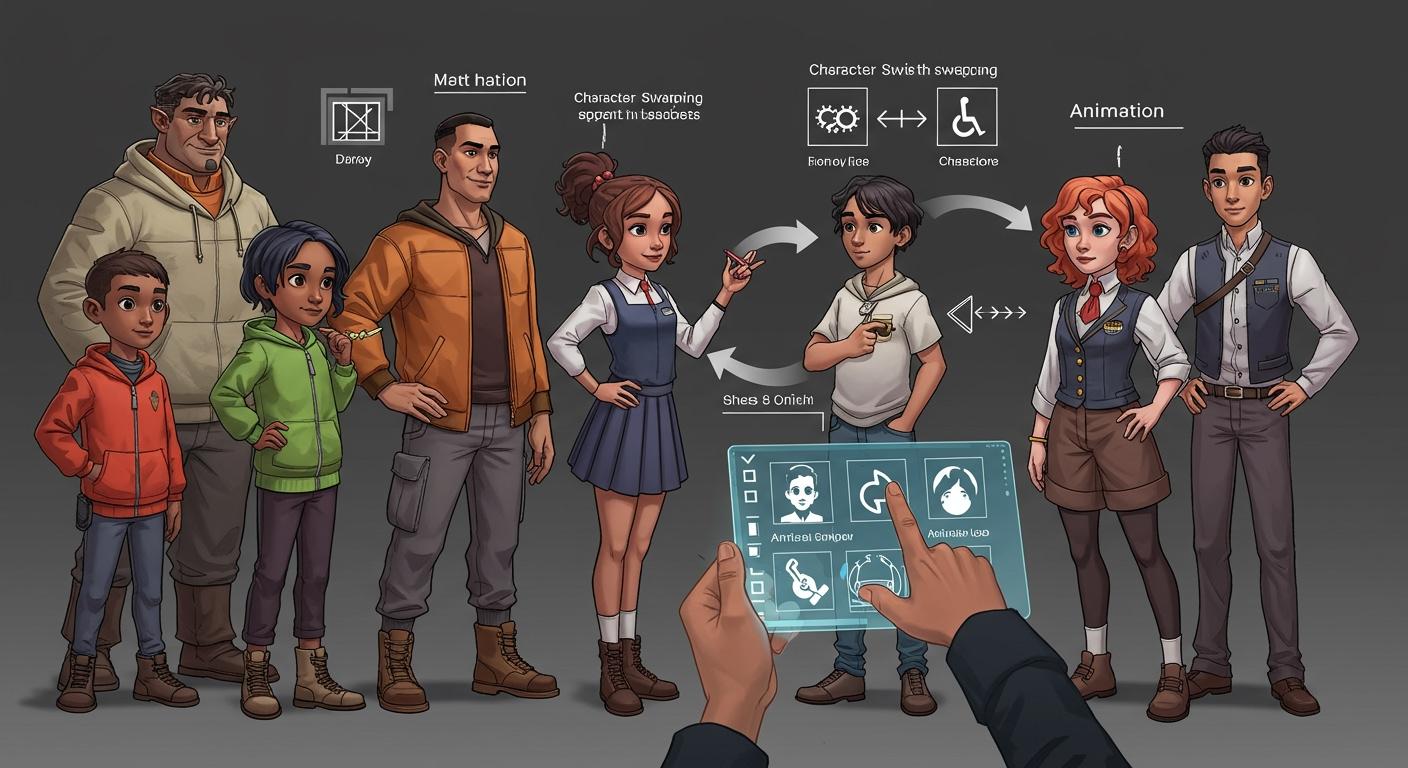
You can change characters in your videos with one picture using wan animate. The new wan 2.2 animate lets you copy faces and moves that look real. You do not need to be a pro to start. Qwen makes everything open-source, so you can use it no matter your skill. Tutorials help you learn fast and get good results.
Key Takeaways
Wan animate makes character swaps in videos easy. You only need to upload an image and a pose video to begin fast.
The tool gives real-looking animations by copying faces and body moves from your video.
Qwen's open-source platform lets anyone make pro-looking videos. You do not need to spend a lot or have special skills.
Tutorials and help from the community make it simple for new users to learn and use wan animate well.
You can make fun content for TikTok and YouTube, so your videos get noticed.
Character swaps with wan animate
Simple process
Wan animate makes swapping characters in videos simple. You do not need fancy software or special skills. Just follow a few easy steps to get a new animated character. Here is what you do:
Upload your character image. Use a portrait, half-body, or full-body photo. Wan 2.2 animate checks your image and gets it ready.
Add your pose reference video. This video shows the moves and faces you want. Wan 2.2 animate looks at the video and finds the skeleton and facial features.
Pick your mode and generate. Choose Animation Mode to keep the background. Pick Replacement Mode to put your character in the original video. Wan 2.2 animate matches the skeleton, copies the face, and fixes the lighting.
Tip: You only need one image and one pose video. Wan 2.2 animate does the hard work for you.
You do not need to spend lots of time drawing or editing. Qwen makes everything fast and easy. Just upload, choose, and let the tool do the rest.
Lifelike results
You want your character to look real. Wan 2.2 animate gives you lifelike results with every detail. The tool copies faces, body moves, and even lighting from your pose video. Your animated character moves like the person in the video.
Here is what you get with wan animate:
Feature | Details |
|---|---|
Input | New Character + Source Video |
Resolution | 480p, 720p |
Max Duration | 120 seconds |
Face Swap Quality | Professional Grade |
Credits (480p) | 20 per 5 seconds |
Credits (720p) | 40 per 5 seconds |
Ideal Use Cases | Content creation, character replacement, professional video editing |
You do not have to wait long for your video. For a 10-second video at 720p, wan 2.2 animate takes about 2-5 minutes on a good GPU. Some tools like Act 2 are faster, but wan 2.2 animate gives you more control and better swaps.
Qwen’s open-source platform lets you use these features as much as you want. You can make videos for fun, school, or work. The results look real, and people will see the difference.
Features of wan2.2 animate
Facial expression replication
You want your character to look real and show feelings. Wan2.2 animate helps your character copy the performer’s face in your video. It can show smiles, frowns, and small changes in the eyes or mouth. You will notice every detail, so your character seems alive.
You may ask if these faces are really accurate. Wan 2.2 animate is better at handling tricky faces than other tools. If you try Animate Anyone or Runway Act 2, you might see odd faces. Wan2.2 animate keeps the face looking normal, even when the person moves fast or does hard actions.
Here’s a quick list of what’s new in wan2.2 animate:
Feature | Description |
|---|---|
Motion Transfer | Puts motion transfer and character replacement in one model. |
Facial Expression Fidelity | Copies the performer’s face and moves for real results. |
Character Replacement | Swaps characters but keeps the original faces and moves. |
Natural Environment Integration | Keeps lighting and color the same for smooth blending. |
Dual Mode Functionality | Lets you pick animation or character replacement. |
Advanced Body Motion Control | Uses skeleton signals for better body movement. |
Precise Motion and Expression | Matches moves and faces from your reference video. |
Natural body movement
You want your character to move like a real person. Wan 2.2 animate uses smart tech to watch your video and copy each move. The model studies how the person walks, waves, or dances. It then puts these moves on your character image, so the animation looks smooth and real.
Wan 2.2 animate uses special motion transfer algorithms. These watch the performer’s body and help your character move in a lifelike way. Your character will not look stiff or robotic. Instead, your character moves with the same energy as the person in the video.
You can make movie-like clips with a real camera feel. The lighting and color match the original video, so your character fits in. You do not need to worry about privacy. Your images and videos are processed right away and not saved after you finish. All data is encrypted, so your content stays safe.
If you want to make videos for fun or work, wan2.2 animate gives you the tools you need. You get both real facial expressions and natural body movement in one simple package.
Accessibility for everyone
Open-source advantage
You do not need lots of money or special gear to use wan animate. Qwen’s open-source platform lets you make things without limits. You can try new ideas, swap characters, and make videos for fun or work. Many people like open-source tools because they are easy to get and cheap.
You get pro features without paying a lot.
Wan animate costs only USD 0.25-1.50 each time. Other tools may cost USD 2.00-5 for the same job.
Indie creators and small studios can try things and learn without worrying about money.
Open-source tools help everyone, not just big companies. You can join a group and share your work.
Open-source animation tools like wan animate are changing how people make videos. Now, you can make videos that look like movies. You do not need a big team or pricey software.
Here is how different groups use wan animate:
User Group | Use Cases |
|---|---|
Educators | Making learning videos and stories with animated characters from video references. |
Content Creators | Making short videos for TikTok, Reels, and YouTube with style swaps. |
Animators | Quickly testing character animations for pitches and bringing mascots to life for campaigns. |
Easy for beginners
You do not need to be an expert to use wan animate. The interface is simple and easy to use. You follow three steps: upload your image, add your video, and pick your mode. The tool does the rest.
You can start making animations in a few minutes.
The steps are clear, so you do not get confused.
Tutorials help you learn fast and get good results.
Many beginners say they feel sure using wan animate. You can see your character move with real body motion and facial expressions. The tool helps you, so you do not need to worry about mistakes.
If you want to try animation for the first time, wan animate is a good choice. You get real-looking results without spending lots of time learning. Qwen makes sure everyone can join and make something new.
Compare animate tools
Efficiency
You want to finish your character swaps fast. Wan animate helps you do that. You do not have to wait hours for your video to render. You get results in minutes. Here’s what makes it stand out:
You get a smooth frame rate of 16 FPS.
The tool is optimized for fast inference, so you do not waste time.
You can pick different resolutions to fit your needs.
Wan animate works well for short videos and high-volume workflows.
If you use traditional animation tools, you might spend hours drawing or editing each frame. Wan animate lets you swap characters quickly. You can make more videos in less time. This helps you if you want to create lots of content or work on big projects.
Usability
You do not need to be an expert to use qwen’s tools. The interface is simple. You upload your image, add your video, and pick your mode. The tool does the rest. You do not have to learn complicated software or spend weeks practicing.
Wan Animate (Wan2.5) emphasizes character replacement, fine expression control, and environmental integration, contrasting with deepfake applications that primarily focus on generating new videos from prompts.
You get more control over your character’s face and body. Deepfake apps can make new videos, but they do not let you adjust expressions or match the lighting as well. Wan animate helps you keep your character looking natural in any scene.
If you want to make videos for fun, school, or work, you can start right away. You do not need special skills. The tool guides you through each step. You get lifelike results without a big learning curve.
Getting started with wan animate
Quick setup
You want to swap characters in your videos right away. Setting up wan animate is easy and fast. You do not need to spend hours learning new software. You just follow a few steps and you are ready to go.
Here is a simple guide to help you start:
Step | What you do |
|---|---|
1 | Pick if you want to use text-to-video or image-to-video. |
2 | For text-to-video, type a short prompt. For image-to-video, upload your reference image. |
3 | Set your video options, like resolution (up to 1080p at 24fps) and aspect ratio. |
4 | Enter your API key and set up the WAN node on your platform. |
5 | Run the workflow to make your video. |
6 | Preview and download your video in the quality you picked. |
You can finish the whole setup in just a couple of minutes. You do not need special hardware or a big budget. You get started and see results fast.
Tip: If you want your video to look even better, try different resolutions and aspect ratios. You can always preview before you download.
Tutorials
You might feel unsure the first time you use animate. Do not worry. There are many tutorials online that show you each step. You can watch short videos or read guides. These tutorials help you learn how to swap characters, set up your workflow, and fix common problems.
You find beginner guides on YouTube and GitHub.
Step-by-step walkthroughs show you how to upload images and videos.
Community forums answer your questions and share tips.
If you get stuck, you can ask for help or check the FAQ. Many users share their own workflows, so you can learn from others. You do not need to figure everything out alone.
Note: Try following a tutorial the first time you use wan animate. You will feel more confident and get better results.
You can change characters in your videos fast with wan 2.2 animate. The open-source model gives you some cool things:
You get animations that look real, with faces and body moves.
You keep the same lighting and colors, so your video looks normal.
You join a group where people share ideas and help each other.
Try using animate for your next project. You might make something amazing!
FAQ
How do I start using Wan Animate?
You just need a reference image and a short video. Upload both, pick your mode, and hit generate. The interface guides you step by step. You can watch a tutorial if you want extra help.
Can I use Wan Animate for free?
You can use Wan Animate for free because it’s open-source. Some advanced features may cost a small fee. Most basic swaps and tests won’t cost you anything.
What kind of images work best?
Clear, front-facing photos work best. Try to use images with good lighting and no big shadows. You can use portraits, half-body, or full-body shots. The tool checks your image before starting.
Is my data safe when I use Wan Animate?
Your images and videos stay private. Wan Animate processes everything right away and doesn’t save your files. All data is encrypted. You control what you upload and download.
Can I make videos for social media?
Absolutely! You can create short clips for TikTok, YouTube, or Instagram. Pick your resolution and aspect ratio. Wan Animate helps you make content that looks professional and grabs attention. 🚀
See Also
Understanding AI Word Humanizer: Unleashing Automated Writing Potential
Discover How Quick Creator Generates Top-Notch AI Marketing Content
Enhance Your Shopify Store Experience Using QuickCreator Tools
Why You Should Consider Joining Quick Creator's Affiliate Program
Streamline Your Shopify SEO Efforts Using Quick Creator Solutions
