How to Turn Videos Into Blog Posts

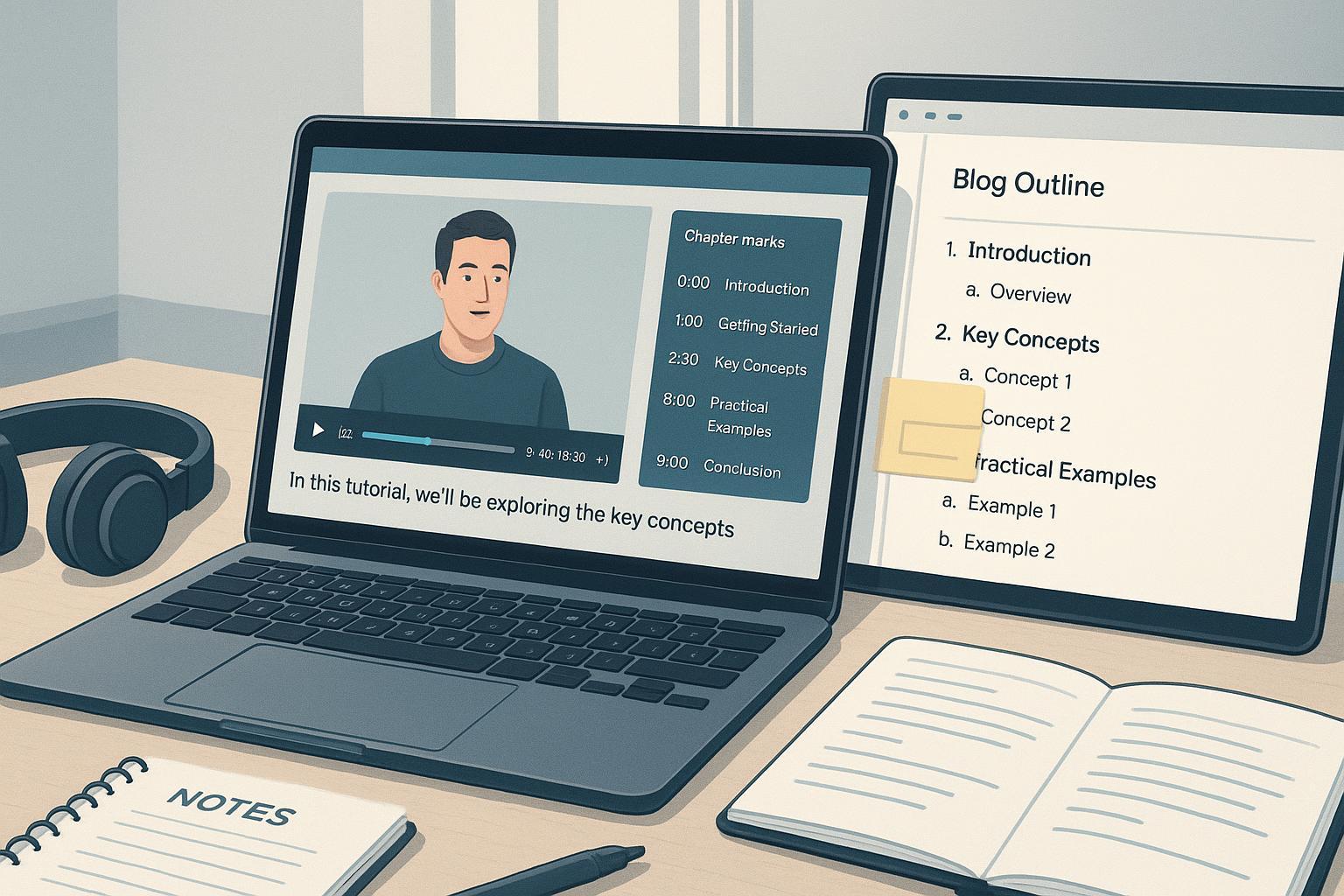
Turning a good video into a great article multiplies your reach. Some people prefer reading, search engines can understand text better than audio, and transcripts make your content accessible. This guide gives you a clean, repeatable workflow: pick the right video, turn the transcript into an outline, rewrite it into strong prose, ship accessibility and SEO, and measure results.
Step 1 — Pick the right source video
Choose a video with durable relevance and a clear structure. Tutorials, explainers, webinars, and product demos usually adapt well. Scan engagement signals (watch time, comments) and confirm the topic won’t go stale next month. If the video has chapters, you’ve already got a skeleton for your article; if not, create them.
If you’re on YouTube, chapters must start at 0:00, include at least three timestamps, and each chapter must be at least 10 seconds. Add them in the description in ascending order—YouTube documents these rules in its guidance on adding chapters to videos: Add chapters to your video.
Step 2 — Get an accurate transcript
Accurate transcripts are the foundation for both accessibility and efficient editing. Generate them automatically if you like, but do a human pass to fix names, jargon, and timing. Keep speaker tags and meaningful non‑speech sounds when they matter (for example, “on‑screen shows the settings panel”). If your video relies heavily on visuals, plan a descriptive transcript that weaves essential visual information into the text.
Make the transcript easy to find on the page and ensure it’s screen‑reader friendly. The W3C’s Web Accessibility Initiative explains that transcripts should be near the media and readable with semantic structure; see Making Audio and Video Media Accessible for principles and patterns.
Step 3 — Map chapters into an outline
Use the transcript to identify the argument flow, examples, and key takeaways, then turn chapters into section headings. Think of each timestamp as a potential H2 or H3. Keep headings descriptive so scanners instantly know what they’ll learn.
| Timestamp | Video chapter title | Blog section heading |
|---|---|---|
| 0:00 | Why this matters | Why this workflow pays off |
| 1:45 | Setup & requirements | What you need before you start |
| 5:10 | Core steps | Step‑by‑step process |
| 12:30 | Common mistakes | Pitfalls and fixes |
Step 4 — Rewrite speech into scannable prose
Spoken language is repetitive and informal. Your job is to preserve substance while tightening phrasing and clarifying logic. Break long thoughts into short paragraphs. Convert spoken lists into bullets or numbered steps only where they genuinely help readers scan.
Before → After example:
“Uh, okay, so you’re gonna click the, like, settings thing, and then there’s this, um, transcript option… it’s not super obvious, but you just, you know, toggle that on.”
After:
Turn on transcripts in Settings. Open the Transcripts panel and enable the toggle; it’s tucked under Advanced, so expand that section if you don’t see it.
Add context where the video assumes visuals. If the speaker says “click here,” name the control in the article. Pull a clean screenshot if it truly clarifies the step, and add meaningful alt text (for example, “CMS settings page with Transcripts panel expanded and Enable toggle on”).
Step 5 — Build the blog post
Open with a specific promise—what pain the article solves and who it’s for. Use your chapter‑based outline as the backbone. In each section, keep paragraphs tight, add examples, and include brief pull‑quotes if the speaker delivered a crisp line worth preserving. If the video comments contain common questions, add a short FAQ section toward the end.
When embedding the video, publish substantial context on the same page: an intro, the rewritten guide, and the transcript. This helps readers and improves understanding for search engines. Google’s documentation recommends a dedicated “watch page” where the video is the primary reason to visit; see Video SEO best practices for current guidance.
Step 6 — Ship the SEO essentials
Implement structured data on your watch page to help search engines understand the video. Google’s Video structured data (VideoObject) page lists the required and recommended properties—always follow the current specs on that page. Validate your page in the Rich Results Test.
Here’s a simplified JSON‑LD example (confirm fields and availability against Google’s doc when you implement):
{
  "@context": "https://schema.org",
  "@type": "VideoObject",
  "name": "How to Turn Videos Into Blog Posts",
  "description": "A step-by-step tutorial on converting videos into accessible, SEO-ready articles.",
  "thumbnailUrl": ["https://example.com/thumbnail.jpg"],
  "uploadDate": "2025-04-28T12:00:00+00:00",
  "duration": "PT8M12S",
  "contentUrl": "https://cdn.example.com/videos/convert.mp4",
  "embedUrl": "https://example.com/blog/convert-video-to-blog/embed"
}
Also make sure the page, the video file or host, and the thumbnail are crawlable and not blocked by robots.txt or noindex. Including a transcript as crawlable text on the page can improve comprehension and accessibility. For broader on‑page basics like titles, meta descriptions, and internal linking, consult Google’s SEO Starter Guide.
If you use chapters, consider aligning your H2/H3s with visible “key moments.” Google documents Clip markup and other options on the same Video SEO page referenced above.
Step 7 — Accessibility you must ship (WCAG‑aligned)
Accessibility isn’t a nice‑to‑have—it’s table stakes. Aim for WCAG 2.2 AA outcomes. At a minimum:
- Provide synchronized captions for prerecorded video and a transcript on the page. For videos where visuals carry meaning, supply a descriptive transcript. W3C’s WAI explains when and how to do this: Making Audio and Video Media Accessible.
- Ensure the media player is keyboard accessible, with visible focus indicators. Avoid auto‑play longer than 3 seconds without an obvious pause/stop control. WCAG 2.2 lists these success criteria in its normative spec: Web Content Accessibility Guidelines (WCAG) 2.2.
- Make transcripts easy to discover near the media and structured with headings and links so screen readers can navigate.
Quick check: Can a keyboard‑only user play/pause, adjust volume, and scrub the timeline? Can a screen‑reader user find and read the transcript? If not, fix that before you hit publish.
Step 8 — Legal guardrails (general information)
The safest path is adapting your own videos or content you’re licensed to use. If you need to incorporate others’ material, embed the original video, attribute clearly, and obtain permission for reproducing substantial text or imagery. “Fair use” exists but is a case‑by‑case legal test that considers purpose, nature, amount, and market effect. Commercial use doesn’t automatically fail the test, but risk increases. Review the U.S. Copyright Office’s overview of Fair Use for the official explanation and factors.
Plain‑English disclaimer: This article is general information, not legal advice. When in doubt, talk to a qualified attorney.
Step 9 — Publish, QA, and measure
Run your validations before you announce the article. Use Google’s Rich Results Test for your VideoObject, then check the page in Search Console’s Video indexing report for visibility issues (for example, video not found on the page or blocked resources). Google’s Developers blog post on video indexing specific issues explains common causes and fixes.
In Google Analytics 4, enable Enhanced Measurement to capture YouTube embed interactions (commonly observed events include video_start, video_progress milestones, and video_complete) and verify them in the Engagement reports.
Link your blog from the video description and add a link back to the video in your article. Monitor Search Console for queries and clicks, track time on page and scroll depth in GA4, and watch YouTube referrers for cross‑traffic. Want a simple yardstick? Aim for growing non‑brand search clicks and an average engagement time that’s comparable to your other how‑to posts.
Troubleshooting: quick fixes
Chapters not showing on YouTube? Make sure the first timestamp is 0:00, you have at least three chapters, and each is at least 10 seconds. Keep them in ascending order in the description.
Video not eligible for rich video features? Create a dedicated watch page where the video is prominent on load, ensure your video/thumbnail/host are crawlable, and add valid VideoObject JSON‑LD. Then re‑test.
Accessibility gaps? Add captions, publish a transcript (or descriptive transcript for visual content), and verify keyboard operability of your player. Place the transcript close to the media and apply semantic headings.
Wrap‑up
Repurposing a strong video into a high‑performing article isn’t magic—it’s a method. Select the right source, clean the transcript, map chapters to headings, rewrite for clarity, embed with context, add VideoObject markup, meet WCAG expectations, and validate before you promote. Do this consistently and you’ll earn search visibility, improve accessibility, and give your audience the choice to watch or read—your call, but they’ll thank you either way.