How to Turn Presentations Into Blog Posts

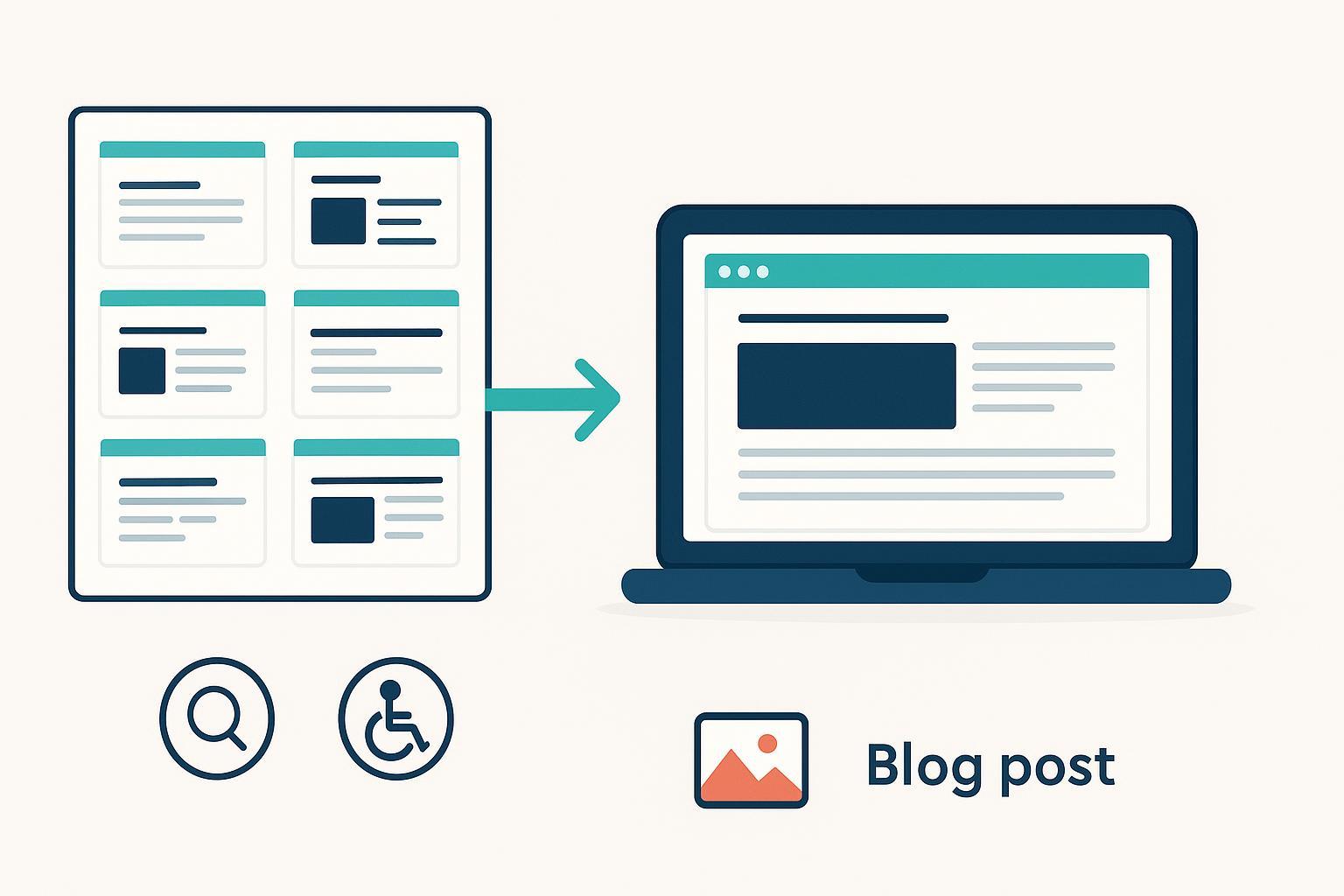
Your slide deck is doing overtime in a folder somewhere, when it could be driving search traffic, leads, and learning. Turning presentations into blog posts isn’t just efficient—it’s how you capture the full value of your ideas in an evergreen, searchable format. Below is a practical, repeatable workflow you can use every time.
1) Prep your deck and goals
Start with clarity. Define the reader, the question they’re asking, and the outcome you want. If the deck was built for a live talk, the blog should meet the same core intent but with added context and references. Summarize your aim in one sentence: “This post helps X do Y so they can achieve Z.” Confirm usage rights for any third-party images or quotes in your slides and list original sources you’ll link later.
2) Extract and inventory slide content
Treat each slide as a unit of meaning. Pull out key statements and bullets (often your H2/H3 seeds), any statistics and quotes with sources and dates, and the visuals (charts, diagrams, screenshots). Create a simple inventory: slide number, main point, supporting details, assets, and reference notes. This becomes your raw material and keeps you organized while you write.
3) Map slides to a blog outline
Most presentations already have a flow. Convert slide sequence into an outline with headings and subheadings. Keep headings descriptive and reader-centric rather than clever.
| Slide # | Slide focus | Blog section (H2/H3) |
|---|---|---|
| 2 | Problem statement | H2: Why this problem matters |
| 3–4 | Causes and context | H3: What’s driving it |
| 5–6 | Solution overview | H2: A practical approach |
| 7 | Case example | H3: A quick example |
| 8–9 | Steps/checklist | H2: Step-by-step instructions |
| 10 | Next actions/CTA | H2: What to do next |
Keep it flexible. If your slides are non-linear, group them by themes and sequence them for web reading.
4) Expand bullets into readable narrative
Bullets are great for slides; readers need sentences, transitions, and context. Expand each bullet with a short explanation, a micro-example, and a reason-to-care. For example, a slide bullet like “Audit top pages” can become:
“Start by auditing your top pages for reader intent and gaps. Pull 90 days of data from your analytics tool and look for pages with strong impressions but weaker engagement. That’s where a repurposed section from your deck can add clarity.”
Use simple transitions—“next,” “meanwhile,” “if”—to keep momentum. Ask one rhetorical question to invite reflection: Are you answering the reader’s real question, or just rewriting the slide?
5) SEO essentials baked into your draft
Align your outline and body to search intent. Put your primary keyword naturally in the H1 and at least one H2/H3, and sprinkle related phrases where they fit. Don’t force it. Structure matters: clear headings, descriptive anchor text, and sensible internal/external links. For fundamentals and current guidance, see Google’s SEO Starter Guide (maintained and updated regularly). Use it as your North Star for discoverability while keeping the content genuinely helpful.
6) Accessibility essentials you can’t skip
Good accessibility makes your content usable for more people and often improves SEO clarity. Apply WCAG basics: write alt text for informative images and leave decorative images with empty alt—this aligns with WCAG 2.2/2.1 Success Criterion 1.1.1, documented in the W3C Web Content Accessibility Guidelines (latest version). Maintain a logical heading hierarchy (H1→H2→H3) so assistive tech can parse the structure, per SC 1.3.1. For color contrast, meet minimums of 4.5:1 for normal text and 3:1 for large text/UI, and confirm ratios using the WebAIM Contrast Checker. Think of accessibility like good hospitality—you’re making sure everyone can comfortably find and consume what you’ve created.
7) Handle images the web-friendly way
Slide visuals need adaptation before they work online. Compress, rename, and reformat for speed and clarity. Use descriptive file names (e.g., “keyword-topic-funnel.webp”), prefer modern formats (WebP/AVIF) where supported, keep a fallback if needed, and write concise, specific alt attributes that convey the image’s purpose. Google’s guidance on image optimization is clear in Image best practices—follow it to help images show up in search and keep pages fast.
8) Embeds and transcripts
If you embed your deck (e.g., via Slides, PowerPoint online, or a third-party tool), provide a text summary or transcript beneath it. Offer a link to the full presentation for readers who prefer the original format. Ensure embeds don’t block indexing or hide key content. For search clarity when embedding, consult Google’s documentation on embedded content, which explains how to make embedded elements understandable to search engines.
9) Conversion moments and CTAs
Match CTAs to the reader’s stage and the post’s promise. Place them where momentum is highest—after a solved problem or a completed checklist—and keep language helpful rather than pushy. For a deeper dive on performance content strategy, see Grow & Convert on conversion content.
10) Verify references, legal rights, and facts
Carry over slide citations into the blog as anchor-text links. Verify the year and source accuracy. If your deck used images or charts from third parties, confirm licenses and attribution. A brief references section at the end helps readers and supports trust. When you’re repurposing, SlideModel’s repurposing guidance offers practical ideas for turning slides into other content formats that you can adapt for your blog workflow.
11) Publish and measure
Run a final proof pass: ensure headings make sense and the flow is smooth, images are compressed and properly named with appropriate alt text, links are descriptive and point to authoritative sources, and CTAs match reader intent. After publishing, track impressions, clicks, time on page, scroll depth, and conversions. Use what you learn to refine the post—tighten headlines, clarify sections, and expand FAQs.
12) Troubleshooting mini-FAQ
What if slides are too sparse? Combine related slides into a single section and supplement with fresh examples. Interview a subject-matter expert to add depth.
What if the deck is visual-heavy? Use image captions and short clarifying paragraphs. Provide alt text that describes function, not just appearance.
What if the narrative is non-linear? Group slides by themes, then use signposts: “First,” “Next,” “Finally,” and summary boxes to guide the reader.
What if sensitive data appears in slides? Mask or generalize in the blog; link to aggregated reports rather than raw private data.
You’ve already done the hard thinking in your presentation. Now’s the time to make that thinking findable, accessible, and useful to a wider audience. Pick one deck today, build the inventory, map your outline, and publish a polished post that keeps working long after the talk is over.