Draft Response Templates for Comments using QuickCreator


QuickCreator helps you create Draft Response Templates for comments quickly and easily. With just a few clicks, you can set up these templates to save time and maintain consistent replies for every comment. Many users boost their productivity significantly by using AI-assisted Draft Response Templates. For instance, AI tools can help workers save up to 40% more time and reduce manual tasks each week. This allows you to respond faster and present a more professional image.
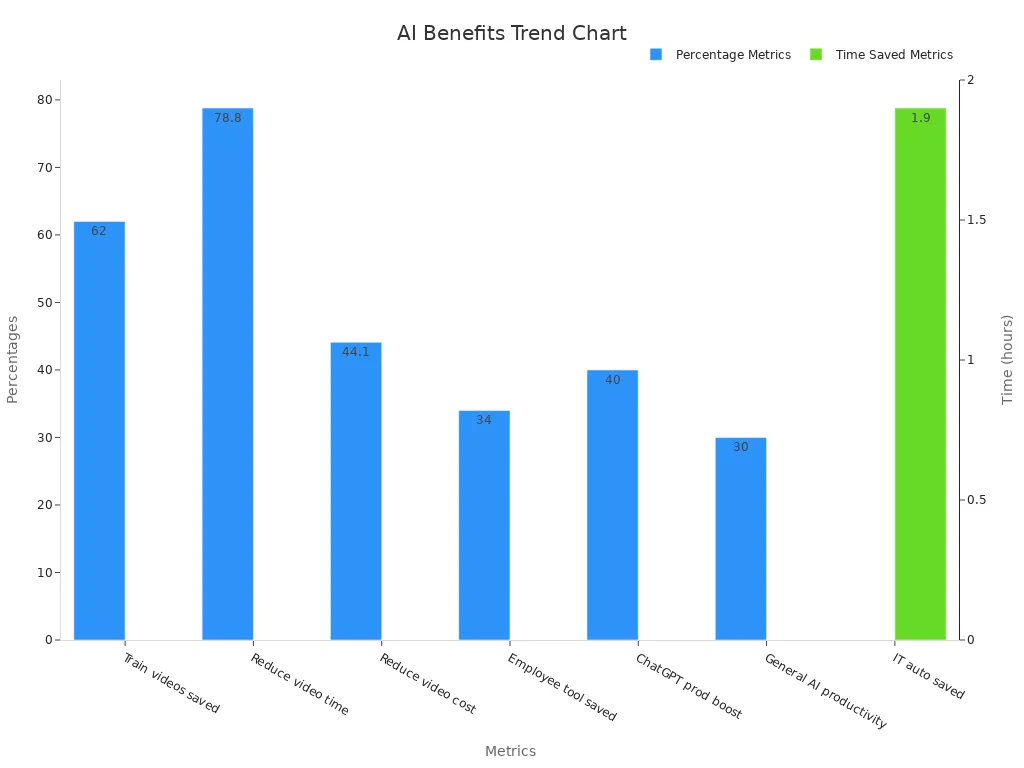
Try these Draft Response Templates to make managing comments easier and more efficient.
Key Takeaways
Using Draft Response Templates in QuickCreator helps you save time. It lets you answer comments faster and in the same way each time.
Making templates that are clear, friendly, and neat makes your replies look professional. It also makes them easy to find when you need them.
Changing templates to match your brand’s tone and style helps people trust you. It also makes your messages feel personal and interesting.
Adding placeholders and using data lets you make replies personal fast. You do not need to do extra work.
Using AI automation with human checks makes replies faster. It keeps the quality high and helps things get better over time.
Draft Response Templates Setup

When you set up Draft Response Templates in QuickCreator, handling comments gets much easier. You can reply faster and keep your answers the same every time. This helps you save lots of time. Let’s see how you can find, make, and sort your templates for the best results.
Accessing Templates
First, go to the TEMPLATES page in QuickCreator. Here, you see all your response templates together. The page is easy to use, so you find what you need fast. Pick the templates you want and add them to your workspace.
Tip: Keeping all your templates in one place saves you from looking through old files or emails. You always know where to find them.
Draft Response Templates work like ready-to-use pieces of text. You can use them to answer the same questions or handle things that happen a lot. This means you do not have to type the same reply again and again. Using templates makes your replies clear and professional.
Creating Templates
When you make a new template, think about the comments you get most. Maybe people ask about shipping, returns, or product details. You can make a template for each kind of question.
Here’s an easy way to start:
Write a short, friendly hello.
Add your main answer or message.
End with a polite goodbye.
You can also use placeholders like [Customer Name] or [Order Number]. This lets you make each reply personal very quickly.
Good templates help you get more people to reply. People like it when your answers are clear and simple. Response rates can go up from 3% to 20% when your messages are easy to read and act on. Keeping your templates the same also makes it easier to check and compare your feedback.
Organizing Templates
After you make some templates, you need to keep them neat. Put them into groups by topic, like "Shipping Questions" or "Product Support." Use folders or tags to sort them. This helps you find the right template fast.
Here’s a quick checklist for keeping your templates organized:
Give each template a clear name.
Put similar templates together.
Check and update your templates often.
Using just a few important templates keeps things simple. It also helps you keep everything current. When your templates are easy to find, you can reply faster and make better choices.
Look at how using templates can help your work:
Metric | Without Templates | With Templates | With Structured Templates |
|---|---|---|---|
381.02 | 103.18 | Even lower | |
Number of Comments | 4.95 | 4.32 | Even lower |
Number of Reopenings | N/A | N/A | Decreased |
Extent of Discussion | N/A | N/A | Decreased |
You can see that Draft Response Templates help you fix problems faster and cut down on long comment threads. When your templates are neat and easy to find, you spend less time searching and more time helping your customers.
Customization
Customizing your Draft Response Templates helps you sound more like yourself or your company. You want every reply to feel right for your brand and easy for people to read. Let’s look at how you can fine-tune your templates for the best results.
Tone and Style
You set the mood with your words. Do you want to sound friendly, professional, or maybe a bit playful? Adjusting your tone and style can make a big difference in how people react to your messages. Here’s a quick look at how different tones work in content:
Tone Variation | Testing Focus | |
|---|---|---|
Headlines | Professional vs. Casual | Click-through rates |
Body Content | Technical vs. Conversational | Time on page |
CTAs | Urgent vs. Friendly | Conversion rates |
Social Posts | Humorous vs. Informative | Engagement metrics |
Many companies see better results when they match their tone to their audience. For example, using a conversational style can keep people reading longer. You might notice more clicks or replies when your templates feel warm and personal. Some users even say they get more done and feel happier with their work when they use the right tone.
Tip: Try out different tones in your templates and see which ones get the best response.
Clarity and Brevity
People like answers that are clear and to the point. If your reply is too long or confusing, readers might skip it. Here are some ways to keep your templates sharp:
Stick to what matters most.
Define any tricky terms the first time you use them.
People prefer summaries that show results right away.
Keeping things short helps everyone understand faster.
Using plain language builds trust and makes your replies easier to read.
Note: Clear and brief templates help your customers find answers quickly and feel more confident in your support.
Brand Voice
Your brand voice is how people remember you. When you use the same voice in every reply, you build trust and make your brand stronger. Studies show that companies with a steady brand voice can grow their revenue by up to 20%. People also feel more loyal to brands that match their own values.
Customers trust brands that sound the same everywhere.
Inconsistent messages can confuse people and hurt your business.
You can keep your brand voice steady by using the same words, colors, and style in all your Draft Response Templates. Check your templates often to make sure they still fit your brand. Ask your team for feedback and update your templates as your brand grows.
Personalization
Making your replies feel personal can turn a simple answer into a great experience. With QuickCreator, you can add a personal touch to every message, even when you use Draft Response Templates. Let’s see how you can do this.
Data Integration
You can connect your templates to real company or customer data. This means your replies can change based on who you are talking to or what they need. Here’s how data integration helps you:
Change answers in real time to fit each comment.
Understand the bigger picture by looking at the whole conversation.
Track how people use your templates and what they like.
Update your templates often to keep them fresh and useful.
Use feedback from users to make your replies even better.
Handle tricky situations with smart error checks.
When you use data integration, your replies feel more helpful and on point. You also learn what works best by checking how people interact with your messages.
Placeholders
Placeholders are like blanks you fill in with real info. For example, you might use [Customer Name] or [Order Number] in your Draft Response Templates. When you reply, QuickCreator swaps these for the real details.
Placeholders save you time.
They help you avoid mistakes.
Your replies look personal, not like a copy-paste job.
You can also use AI tags to make your replies even smarter. These tags let the system pull in the right info for each person. This way, every reply feels like it was written just for them.
Balancing Automation
It’s smart to let AI do the heavy lifting, but you still need a human touch. Here’s how you can get the best of both worlds:
Use AI to draft your first reply.
Review and edit the message yourself.
Set up feedback loops to keep improving your templates.
Let humans check important messages before sending.
Use AI for quick answers, but rely on people for tricky or creative replies.
Many teams find that mixing AI and human editing helps them reply faster and better. One agency even tripled their output by letting AI draft messages and having experts polish them up.
Automation makes things quick, but your final review keeps replies friendly and on-brand. This balance helps you keep quality high while saving time.
Deployment
Getting your Draft Response Templates ready is the last step. You want your replies to be quick, correct, and always getting better. Let’s look at how you can use AI, share, and update your templates.
AI Automation
AI can do a lot of work for you. When you use AI prompts and tags, the system fills in details and sends replies. You do not have to type every word. This saves time and helps you make fewer mistakes. Many companies use AI to work faster and with fewer errors. Here is what AI automation can help with:
Performance Improvement | Description | Measurable Result / Example |
|---|---|---|
Faster Deployment | AI makes it quicker to deliver and roll out products | |
Reduced Human Errors | Automation makes steps easier, so there are fewer mistakes | Fewer errors because the process is simpler |
Greater Accuracy | Automated tools help you do tasks the same way every time | Tasks are always done right when organizing and testing |
Scalability | AI lets you grow fast and add more locations easily | Grew from 5 to 120 places in 9 months |
Inventory Optimization Impact | AI helps manage stock so you do not run out | 23% fewer stockouts in one store example |
Performance Monitoring & ROI | You can track how well AI works and see the results | You can measure both tech and business improvements |
You can see that AI helps you do things faster and smarter. Companies like APPWRK IT Solutions used AI to answer emails and sort messages. They also gave personal replies. This made customers happier and gave workers more time for big jobs.
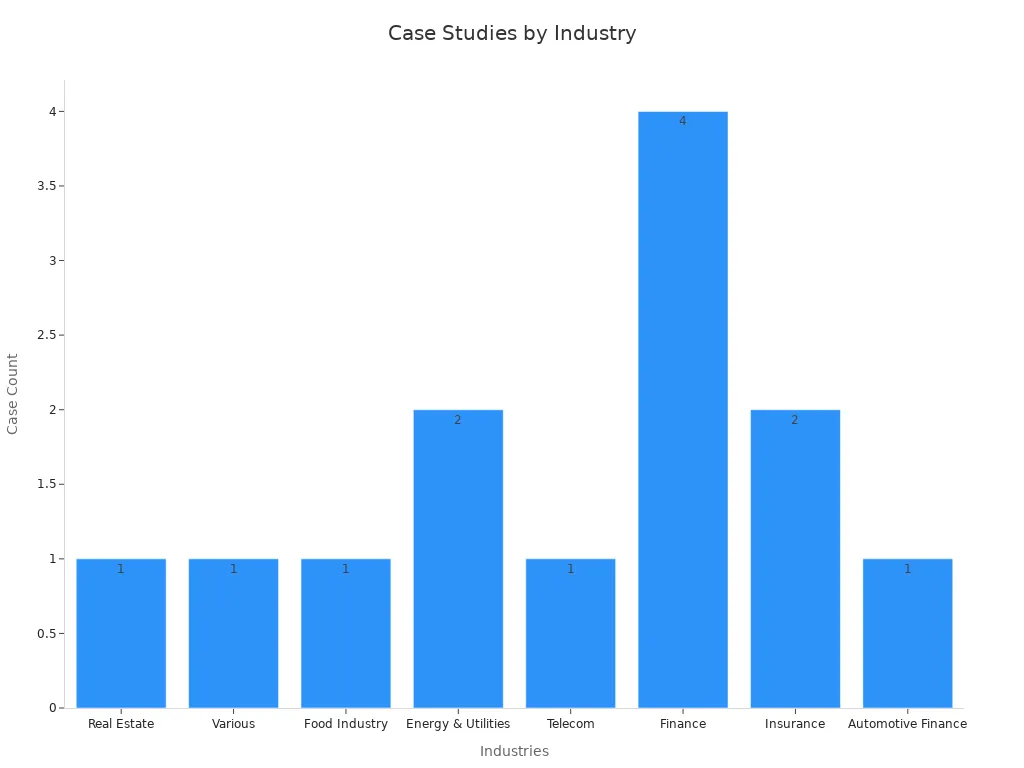
Publishing Templates
When your templates are ready, you want to share them right away. AI prompts make this simple. You set up your template, add tags, and let the system handle it. Studies show that good AI prompts help you publish faster and with less work. You go from making templates by hand to checking and fixing what AI makes. This means you spend less time on small tasks and more time helping people.
Plug-and-play AI tools fit into your daily work.
You can share new templates in minutes, not hours.
Updating Templates
Templates work best when you keep them up to date. You should check your Draft Response Templates often and change them based on what people do and say. Look at likes, shares, comments, and views to see what works. Ask people for feedback and watch your goals. If you see something wrong, fix it right away.
Regular updates keep your templates helpful and on point.
Feedback from users helps you know what to change.
Tracking your results shows what works best.
Teams that check their templates often find problems early and fix them fast. This keeps your replies good and your customers happy. You build a habit of always getting better, which helps your business grow.
When you use Draft Response Templates in QuickCreator, you save time. Your replies stay the same each time. It is important to sound professional and personal. Reports say that using clear KPIs, neat layouts, and pictures helps you stay on track and build trust:
Reports use clear KPIs to show how things are going.
Good layouts help you find info fast.
Pictures make things easier to understand.
If you want to do more, try QuickCreator’s special features. Look at these real results:
Metric/Use Case | Improvement | Explanation |
|---|---|---|
Time saved by marketers | Makes content creation faster | |
Agencies' time reduction | 80% less time | Big labor savings |
Fashion store SEO | 40% more clicks, 60% more sales | Real-world growth |
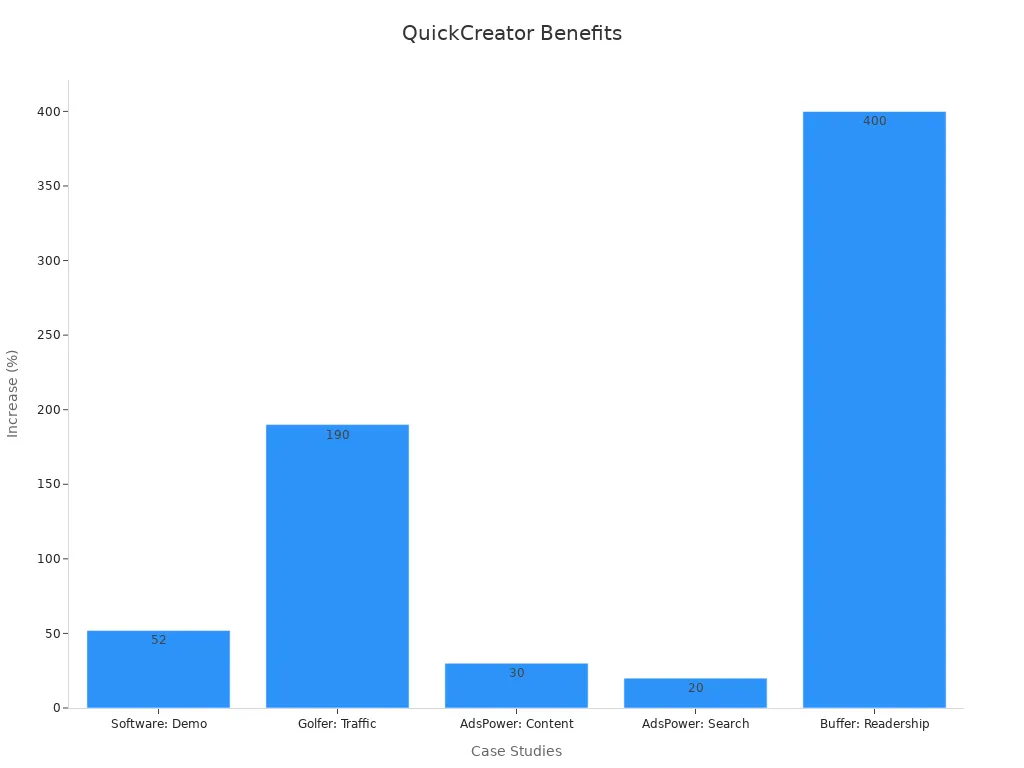
Try QuickCreator now and see how much easier it is to manage comments.
FAQ
How do I start using Draft Response Templates in QuickCreator?
You just log in, go to the TEMPLATES page, and pick a template. Click to add it to your workspace. You can start replying to comments right away.
Can I change the templates to match my brand?
Yes! You can edit any template. Change the words, tone, or style. Make sure your replies sound like you and fit your brand.
Tip: Review your templates often to keep them fresh and on-brand.
What are placeholders, and how do they work?
Placeholders are special tags like [Customer Name]. QuickCreator swaps these for real info when you reply. Your messages feel personal without extra work.
How often should I update my templates?
Check your templates every month. Update them if you see new questions or get feedback. Fresh templates help you give better answers and keep customers happy.
See Also
Mastering Fast Content Production With QuickCreator's New Features
Comparing Writesonic AI And QuickCreator For Content Excellence
Customizing Startup Blog Posts To Engage Target Readers Effectively