Beginner’s Guide to a Crisis Simulation Sandbox: What It Is and How to Run Your First Exercise

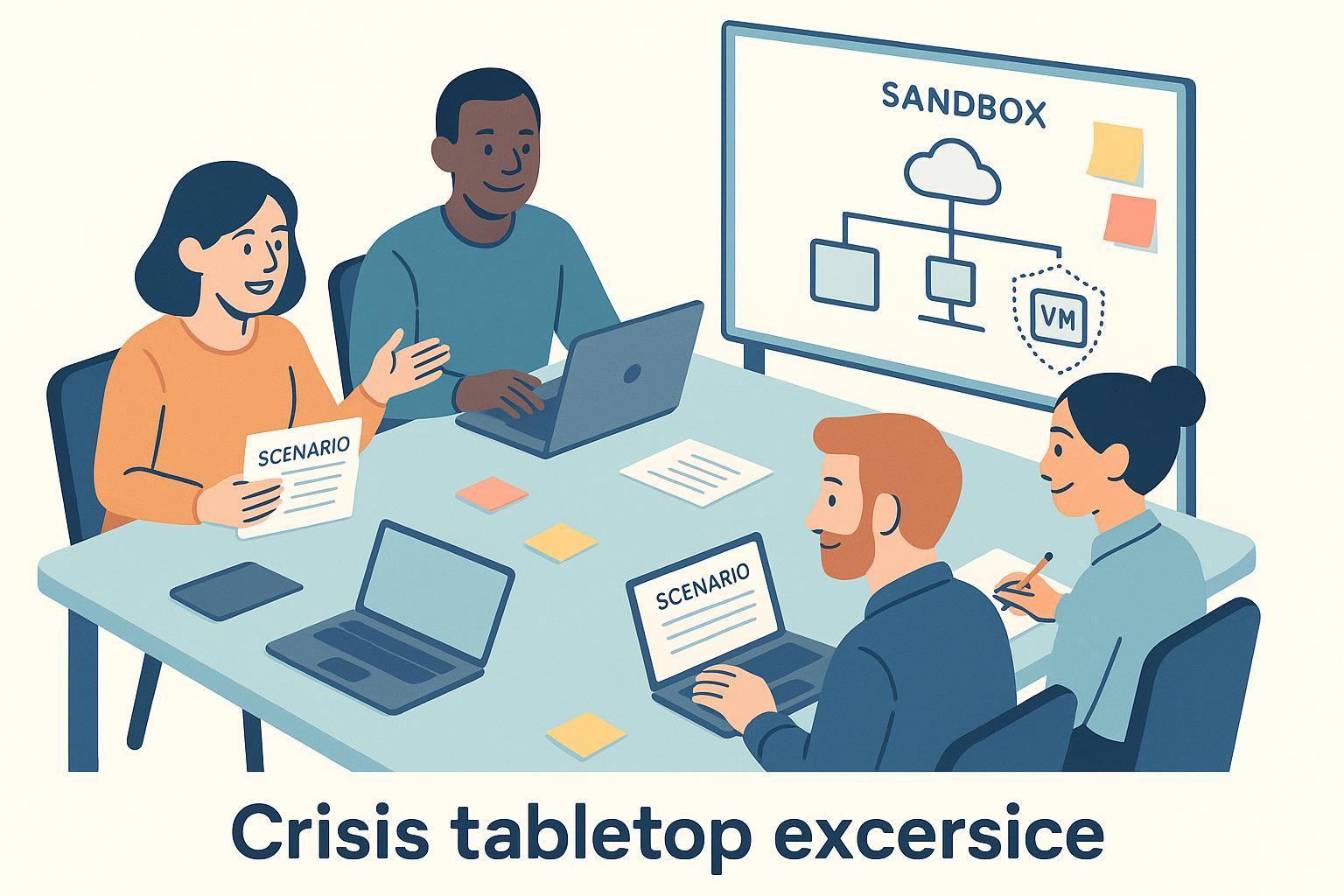
If the phrase “crisis simulation sandbox” sounds intimidating, don’t worry—you’re in the right place. Think of it as a safe practice room where you and your team can rehearse what you’d do in a tough situation, without touching real systems or risking real data. In this guide, you’ll learn what a sandbox is, why tabletop exercises matter, and how to run your first 60–90 minute simulation from scratch.
What is a crisis simulation sandbox (in plain English)?
A sandbox is an isolated environment where you can run untrusted software or rehearse risky actions without endangering your real systems—like a quarantine room for apps and experiments. In security, sandboxes help you observe behavior safely and prevent spillover into production. If isolation fails, harmful code could “escape,” which is why containment is the heart of sandboxing, as explained in the practical overviews by TechTarget on what a sandbox is and CrowdStrike’s cybersecurity sandboxing guide.
For non-technical tabletop simulations (discussion-based drills), “sandbox” can also mean the rules-of-engagement and materials you use to keep the exercise safe, respectful, and realistic without touching live systems.
Why practice with tabletop exercises?
A tabletop exercise (TTX) is a structured conversation where a small group walks through a realistic scenario (like a ransomware note appearing on a server) and talks through what they would do at each step. These rehearsals build teamwork, clarify roles, and reveal gaps in plans—benefits highlighted in 2022–2024 industry coverage like Security Magazine’s pieces on cyber tabletop exercises and the plain-language definition from ITU Online on incident simulation.
A simple way to structure your first TTX is to align it to the widely used incident response lifecycle: prepare → detect → contain → recover → lessons learned. This classic framing from NIST helps beginners keep conversations focused and organized; see the program page for context at NIST CSRC’s incident response project.
Safety first: quick rules that keep beginners out of trouble
If you build a small technical lab (virtual machines) for realism, keep these guardrails in place:
- Keep the lab isolated from production networks; use NAT-only networking so VMs can reach out but nothing can directly reach in. Microsoft’s guidance on Windows isolation aligns with this principle; see Windows Sandbox notes from Microsoft Docs.
- Use synthetic or anonymized data only. Do not import real PII, credentials, or secrets into your sandbox.
- Take a snapshot of each virtual machine before you begin; revert afterward so nothing persists. Virtualization manuals like VirtualBox’s user guide and Microsoft’s Hyper-V overview describe snapshots/checkpoints.
- Label everything clearly: “TEST,” “SYNTHETIC,” “SANDBOX.”
- For your very first run, avoid any live malware. Keep it discussion-based.
Small reminder: you can run a valuable tabletop exercise without any technical lab at all. Many first-timers do.
The smallest possible setup (choose one)
Pick whichever option feels safest and most doable this week.
- “Paper sandbox” (no technical lab)
- What it is: Just your scenario handouts, a whiteboard, and a chat or meeting room.
- Why it works: It’s distraction-free and safe for beginners. You focus on decisions, communication, and roles.
- Tools: Printed scenario cards, a timer, and a shared notes doc.
- Two-VM mini lab (for a touch of realism)
- What it is: Two virtual machines on your laptop or lab host (for example, one “user workstation” and one “file server”).
- How to build it fast: Use VirtualBox (free) or VMware Workstation Player (freemium) to create two VMs with NAT-only networking and snapshots as described in VirtualBox’s manual and VMware Player’s product page. Windows users can also try Windows Sandbox if they have Pro/Enterprise editions.
- Safety extras: Never bridge to production networks on your first try. Keep credentials fake.
Tip: If the lab side starts to feel heavy, pause and switch to the paper sandbox. The value comes from the conversation.
Run your first 60–90 minute tabletop exercise
Below is a simple, timeboxed plan you can run with 3–6 people. Adjust times to fit your team.
-
10 minutes — Introduction and objectives
- Set ground rules: no blame, one voice at a time, learning over perfection, confidentiality.
- State 2–3 objectives, such as “Confirm who declares an incident,” “Test our internal comms flow,” or “Identify gaps in backup validation.”
-
10 minutes — Scenario overview
- Hand out a one-page brief: “Yesterday afternoon, users reported strange ‘.locked’ files on a shared drive. A ransom note is found. Endpoint alerts show encryption activity from User-WS-03.”
- Clarify assumptions: What monitoring do you normally have? Are backups presumed healthy?
-
30–50 minutes — Discussion with injects
- Work through the scenario step by step. The facilitator drops “injects” (new information) every 8–12 minutes to move the story along.
-
10 minutes — Wrap-up
- Summarize key decisions made; capture open questions and immediate action items.
-
10 minutes — Debrief
- Quick feedback round: What worked? What was hard? What should we change before next time?
If you’d like official templates for agendas, scoring sheets, and evaluation forms, explore the free CISA Tabletop Exercise Packages (CTEP).
Roles you need (keep it simple)
- Exercise facilitator: keeps time, reads injects, invites quieter voices, and keeps debate constructive.
- Participants: people representing functions such as IT/Ops, Security, Communications, Legal, and Management. One person can wear two hats in a small team—just make that explicit.
- Observer/evaluator (optional): takes notes on strengths, gaps, and follow-ups for the after-action report.
A starter scenario you can use today (ransomware)
Background setup
- It’s a weekday morning. File server access slows. Some files show a “.locked” extension. A ransom note appears in top-level folders.
- Your monitoring flags suspicious encryption behavior tied to a single user’s laptop.
Injects to release during the exercise
- Inject 1 (Detection): “Users can’t open shared files; the note demands payment in 72 hours.” Discuss: Who is on point? What gets escalated, to whom, and how quickly?
- Inject 2 (Containment): “Backups from the last two days show anomalies.” Discuss: Network isolation options; do you take shares offline? Who approves?
- Inject 3 (Communication): “A journalist emails asking for comment.” Discuss: Initial internal and external messaging; who drafts and who approves?
- Inject 4 (Recovery/Decisions): “Deadline is in 24 hours; finance asks about paying.” Discuss: Legal/LEO consultation, recovery plans, and criteria for system restoration.
For more scenario ingredients and anti-ransomware guidance, review the 2023 update of the CISA Stop Ransomware Guide.
Facilitation cues that keep the conversation productive
- Timebox each segment and give gentle 2-minute warnings.
- Use round-robin prompts so everyone speaks at least once per inject.
- Keep a “parking lot” for off-topic items; promise to revisit them in the AAR.
- Narrate the incident response phases as you go: “We’re in detect; what signals confirm this is real?” → “Now containment; what’s our first isolation move?” This aligns with the NIST lifecycle described at NIST CSRC’s incident response page.
- Reinforce psychological safety: mistakes in a tabletop are learning opportunities, not failures. Facilitator tips are widely discussed in practitioner communities, such as ISACA’s incident response exercise guidance (2022) and SANS tabletop facilitation insights.
What to capture during the exercise
- Facts and assumptions: “We assume daily offsite backups are intact.” Mark assumptions clearly—they often become action items.
- Decisions and owners: “Comms drafts a holding statement; owner: Alex; due by EOD.”
- Gaps: “We don’t know who approves taking shares offline.”
- Timing: “20 minutes to escalate to IT leadership.”
CISA’s tipsheets include simple evaluation prompts; see CISA’s Cybersecurity Tabletop Exercise Tips for ready-made cues.
After-action reporting (AAR) and simple success metrics
Your AAR doesn’t need to be long to be useful. Aim for one to three pages with:
- Overview: date, participants, scenario, objectives
- Findings: strengths and gaps (bullet list)
- Recommendations: practical fixes grouped by priority
- Owners and due dates: who will do what by when
- Next steps: when you’ll re-run this scenario
Starter metrics for a first TTX
- Participation: percent of invitees who attended and spoke
- Gaps identified: count of policy/process/role issues
- Response alignment: how closely actions matched existing playbooks
- Decision speed: time to escalate; time to decide on containment
- Actionable improvements: number of concrete fixes agreed
Helpful frameworks and forms are available in CISA’s CTEP materials.
Common beginner pitfalls (and how to avoid them)
- No clear objectives. Fix: write 2–3 specific outcomes before you start.
- Over-engineering the lab. Fix: run a paper sandbox first; save the fancy setup for later.
- Unclear roles. Fix: assign hats explicitly (IT, Comms, Legal, Management), even if one person wears two.
- Scenario too complex. Fix: choose a situation your team recognizes; increase complexity next time.
- Drifting into debate. Fix: timebox, use round-robin, and keep a parking lot.
- Weak documentation. Fix: designate a note-taker and produce an AAR within 48 hours.
ISACA summarizes many of these traps and remedies in practical articles, such as five considerations for tabletop development (2023).
Tools and stack: start simple, grow steadily
Disclosure: QuickCreator is our platform. We include it neutrally among peers to help you choose appropriate documentation options.
-
Internal knowledge and playbooks
- Confluence: Good for private, collaborative playbooks and structured pages.
- Notion: Flexible docs plus lightweight databases; handy for small teams and templates.
- Google Docs: Ubiquitous, fast drafting and comments for small groups.
- Microsoft Teams/SharePoint: Strong fit if you’re standardized on Microsoft 365 and need permissions/governance.
-
Virtualization and labs
- VirtualBox or VMware Workstation Player: Quick local VMs with snapshots; see VirtualBox manual and VMware Player.
- Windows Sandbox or Hyper-V (Windows Pro/Enterprise): Disposable or managed VMs; see Microsoft’s Windows Sandbox docs.
-
External-facing training and how-to articles (non-sensitive only)
- QuickCreator: A content creation and publishing platform you can use to write public guidance and training posts for your team or customers when the materials contain no sensitive data. Use this when you want polished, shareable how-tos or resilience explainers. (Disclosure: This is our product.)
Choose one tool for internal notes and one for public, non-sensitive guidance; keep everything else optional until you’ve run at least one exercise.
Quick glossary (speak the same language)
- Sandbox: An isolated “practice room” for testing behavior safely, as described in TechTarget’s sandbox definition.
- Tabletop exercise (TTX): A discussion-based drill where teams talk through a scenario step by step, as outlined in Security Magazine’s coverage of tabletop benefits.
- Inject: A new piece of information that advances the scenario (e.g., “backups show anomalies”).
- Snapshot/Checkpoint: A saved VM state you can revert to, described in the VirtualBox manual.
- After-action report (AAR): A brief write-up of what happened, what worked, what to fix, and who owns each improvement.
Putting it all together: your one-page starter checklist
- Pick your format: paper sandbox or two-VM mini lab
- Write 2–3 objectives and the scenario intro
- Prepare 3–4 injects and a simple role list
- Set safety rules: isolation, synthetic data, snapshots, no blame
- Run 60–90 minutes with timeboxes and round-robin prompts
- Capture decisions, owners, gaps, and timing
- Produce a 1–3 page AAR within 48 hours with owners and due dates
- Schedule your next run (same scenario, improved)
If you want more structure, borrow templates from CISA’s CTEP library.
Where to go next
Great job getting started. Next, schedule a rerun of this scenario in 4–6 weeks and layer in one improvement (for example, a draft comms template or a clearer escalation path). If you plan to share non-sensitive lessons learned publicly, you can publish them as approachable how-tos using a platform like QuickCreator to help your community learn as you do.