Best Tools to Repurpose Content (2025)

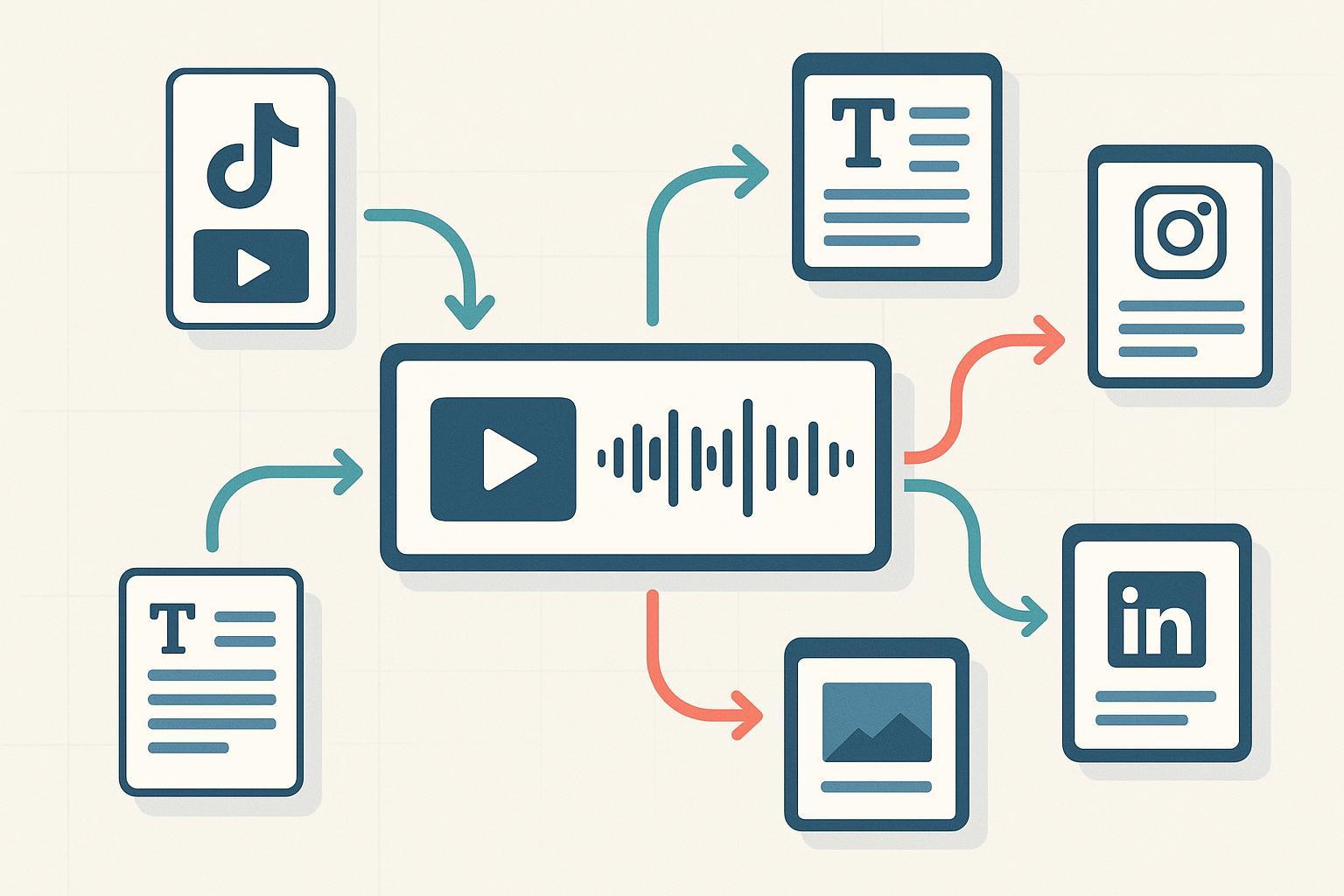
Repurposing is how teams stretch one webinar, podcast, or long‑form video into a week (or more) of platform‑native content—without burning out. The best tools don’t just “convert” files; they help you find the right moments, fit platform specs (aspect ratios, captions, safe zones), and distribute reliably. Below you’ll find a practitioner’s shortlist organized by job‑to‑be‑done, with clear trade‑offs and current evidence.
How we evaluated (and why it matters)
We scored tools on six criteria: capability match to the repurposing task (30%), automation depth and integrations (20%), output quality and edit controls (15%), learning curve and workflow speed (15%), evidence quality/recency (10%), and value/pricing flexibility (10%). Pricing, plan names, and quotas change often—always verify on the official pages before you buy. For an independent pulse on AI video clipping quality, see The Podcast Host’s hands‑on test of multiple tools in 2024: “AI Video Repurposing Tools for Podcasters: Tested & Compared”.
Which tool for which job?
| Use case | Top picks |
|---|---|
| Long video → short vertical clips (Reels/Shorts/TikTok) | Opus Clip, Quso.ai (formerly Vidyo.ai), VEED.io, Descript |
| Podcast/audio → blog, notes, transcripts | Podsqueeze, Riverside, Sonix |
| Cross‑posting & automation | Repurpose.io, MeetEdgar |
| Visual resize/format switch, quick multi‑format | Canva (Magic Switch), Pictory |
| Translation & dubbing for new markets | Rask AI |
| Niche/creator workflows & templates | Vizard, Recast Studio |
Video → short clips (YouTube to Shorts, webinar to reels)
Opus Clip
What it’s for: Fast AI clipping from long videos with automatic captions and vertical reframing.
- Highlights: AI segment selection, animated keyword captions, multiple aspect ratios, batch processing. Independent reviewers note the free plan watermark and export caps; paid tiers unlock higher resolution and remove watermarks—see StreamLadder’s 2024 review for details: “Opus Clip Review: What Streamers Should Know”.
- Pros: Very quick first drafts; solid defaults for social; AI “virality” scoring can help prioritize cutdowns.
- Cons: Auto‑picks can miss context; manual tweaks are still needed on complex scenes; free plan watermark.
- Best for: Solo creators and small teams who want speed over granular edit control.
- Pricing: Free tier plus paid plans that add minutes, 1080p, and batch features (subject to change on the vendor site).
Quso.ai (formerly Vidyo.ai)
What it’s for: AI highlights plus built‑in scheduling/analytics in one dashboard.
- Highlights: Intelliclips (AI highlights), captions, templates, 9:16/1:1/16:9 reframing, direct scheduling to multiple platforms. The company announced the renaming from Vidyo.ai to Quso.ai in late 2024—see the official rebrand post.
- Pros: All‑in‑one flow (clip → schedule) can save a step; friendly to non‑editors.
- Cons: Free plan watermark; some advanced editing still easier in a full NLE.
- Best for: Creators who want clipping and scheduling without juggling multiple tools.
- Pricing: Free + paid tiers; verify current plan names and export limits on Quso’s pricing page.
VEED.io
What it’s for: Browser‑based editing with auto subtitles, templates, and quick social formats.
- Highlights: Auto‑captions, brand kits, templates, translations; team collaboration. Free plans typically watermark and cap export quality, while paid tiers unlock higher resolutions.
- Pros: Great for fast captioned snippets; strong template library.
- Cons: Heavy projects can feel slower in‑browser; advanced edits may require a desktop editor.
- Best for: Marketers who need on‑brand snippets without a steep learning curve.
- Pricing: Free + multiple paid tiers with higher export quality and team features (subject to change).
Descript
What it’s for: Text‑based editing for audio and video, ideal for creating clips from transcripts.
- Highlights: Automatic transcription, text‑based cutdowns, Studio Sound, captions, eye contact, and screen‑friendly “scenes.”
- Pros: Edit like a doc; fast rough cuts; easy captions.
- Cons: Learning curve for newcomers to script‑style editing; some features locked to higher tiers.
- Best for: Podcasters and webinar hosts who think in transcripts and want precise trims.
- Pricing: Free + paid tiers with more transcription hours and higher export options; check the live pricing page.
Podcast/audio → blog posts, show notes, and transcripts
Podsqueeze
What it’s for: Turning podcast audio into blog drafts, show notes, newsletters, quotes, and social posts.
- Highlights: Generates multi‑format assets from one upload; supports transcripts; also creates audiograms/quote images. See features on the “Convert Voice to Blog” page.
- Pros: Purpose‑built for podcasters; useful variety of output assets.
- Cons: AI drafts need human fact‑check; minutes/credits quotas apply.
- Best for: Hosts who want “one upload → many assets” without juggling tools.
- Pricing: Tiered minutes/credits; verify current quotas and any watermarking for media assets on the official pricing page.
Riverside
What it’s for: Studio‑quality recording with AI transcriptions, Magic Clips, and AI show notes.
- Highlights: Separate tracks, AI transcripts, quick promo clips (Magic Clips), text‑based edits. Current free/paid limits, watermarks, and track hours are on the pricing page at Riverside.
- Pros: Capture + transcript + clip in one place; reliable for remote guests.
- Cons: Free plan limits and watermarks on some exports; best quality under paid tiers.
- Best for: Creators who want recording and repurposing in one workflow.
- Pricing: Free, Standard, Pro, and higher tiers; check live limits and export rules.
Sonix
What it’s for: Fast, accurate automated transcription with robust export formats.
- Highlights: Speaker diarization, 40+ languages, timestamps, caption exports (SRT/VTT), and integrations (Zoom, Dropbox, Zapier). For current pricing models, see Sonix pricing.
- Pros: High‑quality transcripts and flexible exports; helpful for SEO‑ready captions and blogs.
- Cons: Pay‑as‑you‑go minutes can add up on big backlogs; human cleanup still required.
- Best for: Teams that need accurate transcripts to power blogs, captions, and search.
- Pricing: Pay‑as‑you‑go and subscriptions; confirm current rates and included minutes.
Quick note on accuracy: You’ll see “WER” (word error rate) used to describe transcription quality. Even top tools benefit from a human pass for names, acronyms, and niche terms.
Automation and cross‑posting
Repurpose.io
What it’s for: Automation layer that pulls from YouTube, podcasts, or cloud drives and pushes platform‑ready clips and posts to Shorts/Reels/TikTok, LinkedIn, and more.
- Highlights: Prebuilt workflows, templates, scheduling, and a broad set of connections (YouTube, RSS, Zoom, Vimeo, Google Drive/Dropbox, Instagram, TikTok, LinkedIn, Facebook, X, and more). For current plan names and tiers, see the official site: Repurpose.io.
- Pros: Big time‑saver for multi‑platform distribution; reduces repetitive upload work.
- Cons: Not a full editor; you’ll still want a clipping/caption tool upstream.
- Best for: Agencies and creators who want consistent, rules‑based distribution.
- Pricing: Multiple tiers for solo creators through agencies; verify current plan names, account limits per channel, and trial terms.
MeetEdgar
What it’s for: Evergreen content library with automated recycling and category queues.
- Highlights: Variations from one post, scheduled category loops, simple analytics.
- Pros: Keeps evergreen content alive without manual rescheduling.
- Cons: Narrower scope than full suites; platform API limitations can affect some formats.
- Best for: Small teams with a large evergreen backlog.
- Pricing: No free plan; paid tiers only—confirm latest pricing on the site.
Visual transformation, translation, and niche helpers
Canva (Magic Switch)
What it’s for: Resize a design into multiple formats and translate copy to new languages fast.
- Highlights: Magic Switch to convert a post into presentation, story, or flyer formats; brand kits; translation to other languages.
- Pros: Rapid assets for multi‑channel campaigns; easy brand consistency.
- Cons: Complex layouts may need manual fixing after auto‑resize; Docs support varies.
- Best for: Marketers who need fast, on‑brand variations from one source design.
- Pricing: Magic Switch features are available on paid Canva plans; verify the current plan requirements.
Rask AI
What it’s for: AI translation and dubbing so your videos can reach new markets.
- Highlights: 130+ languages, AI lip‑sync, subtitles with SRT export, voice cloning.
- Pros: Opens up international distribution without re‑recording.
- Cons: Voice clones and lip‑sync need QA; legal/commercial‑use terms vary by plan.
- Best for: Creators testing new regions or multilingual campaigns.
- Pricing: Free tier plus paid subscriptions and credits; confirm on the official pricing page.
Pictory
What it’s for: Turn long videos and even blog posts into social‑ready clips with captions and stock media.
- Highlights: Auto highlights, script‑to‑video, templates, voiceovers, multiple aspect ratios.
- Pros: Useful when you have text or long video inputs and need quick social outputs.
- Cons: Stock‑media look requires careful curation; AI suggests highlights but benefits from manual review.
- Best for: Webinars and blog repackaging into short videos.
- Pricing: Free/trial often watermarked; paid tiers unlock higher resolution and quotas—check current plans.
Vizard
What it’s for: Speaker‑aware clipping for webinars/podcasts with smart reframing and captions.
- Highlights: AI highlights, translation, team workspace, multi‑platform formatting.
- Pros: Handy for multi‑speaker content; quick format presets.
- Cons: Still maturing vs. veteran editors; verify export limits before committing.
- Best for: Teams repackaging demos, webinars, and panel discussions.
- Pricing: Free + paid plans; verify watermark/export caps on the live pricing page.
Recast Studio
What it’s for: Convert podcasts/videos into batches of clips, audiograms, and social assets.
- Highlights: AI clip finder, transcript‑based editing, templates/branding, multi‑aspect exports.
- Pros: Efficient for turning one long episode into many deliverables.
- Cons: Credits/quotas can constrain heavy users; expect some manual polish.
- Best for: Podcasters and agencies producing lots of social cutdowns weekly.
- Pricing: Tiered plans; check current pricing and watermark policy on the vendor site.
Risks, limits, and how to pilot without surprises
- Watermarks and resolution caps: Free plans often include watermarks and cap exports at 720p; paid tiers usually remove these. Always run a sample export first.
- Aspect ratios and safe zones: Vertical (9:16), square (1:1), and horizontal (16:9) each have text “safe areas.” Test caption styles so they don’t collide with platform UI.
- Transcription accuracy and cleanup: Even strong automated services require human review. For a practical overview of accuracy, formats, and costs, see Buzzsprout’s 2024 guide to podcast transcription.
- Automation boundaries: “Cross‑posting” can mean scheduling or fully automatic posting triggered from an RSS/YouTube feed. Platform APIs change; validate your must‑have destinations before you scale.
- Privacy and compliance: If you handle client files or sensitive topics, check data retention, region, and permissible use of AI outputs in each vendor’s terms.
Frequently asked: What’s the fastest way to start?
If you need wins this week, pick a single long‑form source and build a tiny pipeline:
- Record or choose one 30–60 minute asset.
- Use a clipper (Opus Clip, Quso.ai, or Descript) to produce 5–8 short vertical cuts with captions.
- Generate a transcript and clean it for quotes and social copy (Sonix or the built‑in tool).
- Set up an automation to cross‑post (Repurpose.io) and an evergreen queue (MeetEdgar) for next month.
- Translate one top clip for a new region (Rask AI) and resize a hero graphic (Canva) to cover all placements.
Want a sanity check before you commit? Compare a manual workflow for one episode against an automated one and time each step. Which bottleneck actually hurts you—clipping, captioning, or distribution?